
Last updated: 23-02-2015 12:28
Throughout this document I am ably assisted by Luigi Menabrea, Ada Lovelace and Charles Babbage. All of these individuals were key to the development of the famous analytical engine of 1830s and 40s fame from which modern computing can trace its origins. Babbage developed the analytical engine after a number of attempts to build a difference engine, made to compute values of polynomial functions. The Analytical Engine is the transition to general purpose computation from mechanised calculators. Luigi went on to serve as the 7th Prime Minister of Italy from 1867 to 1869. His sketch of "The Analytical Engine" Invented by Charles Babbage, Esq while a military engineer was translated by Ada Augusta, Countess of Lovelace in 1842. These notes included additional detail that Lovelace is now widely recognised as the world's first computer program and therefore Ada is credited as being the first computer programmer.
This is the process for creating backups using the gzip, bz2 or xz utilities. This are explained in detail in section 3.
Backup the /home directory using gzip.
  $ sudo tar -czvf /home.tgz /home

  $ file /home.tgz
  home.tgz: gzip compressed data, from Unix, last modified: Tue Oct 21 10:38:46 2014
Backup the /home directory using bz2.
  $ sudo tar -cjvf /home.tbz2 /home

  $ file /home.tbz2
  home.tbz2: bzip2 compressed data, block size = 900k
Backup the /home directory using xz.
  $ sudo tar -cJvf /home.xz /home

  $ file /home.xz
  home.xz: XZ compressed data
Main users account options.
| Option | Notes |
|---|---|
| -c, --comment COMMENT | |
| -m, --create-home | Create the user's home directory. |
| -s, --shell SHELL | Login shell of the new account. |
| -U, --user-group | Create a group with the same name as the user. |
Add a user Ada Lovelace to the system.
  $ sudo useradd -c "Ada Lovelace" -s /bin/bash -m alovelace

  $ cat /etc/passwd |grep alovelace
  alovelace:x:1002:1002:Ada Lovelace:/home/alovelace:/bin/bash
Change the password for Ada Lovelace.
  $ sudo passwd alovelace
  Enter new UNIX password: maths
  Retype new UNIX password: maths
  passwd: password updated successfully
Test the login for Ada Lovelace.
  $ su alovelace
  Password: maths
  $ id
  uid=1002(alovelace) gid=1002(alovelace) groups=1002(alovelace)
Add Ada Lovelace to the babbage group.
$ sudo usermod -g babbage alovelace
Change the shell of Ada Lovelace to tcsh.
  $ sudo usermod -s /bin/tcsh alovelace

  $ cat /etc/passwd | grep alovelace
  alovelace:x:1002:1002:Ada Lovelace:/home/alovelace:/bin/tcsh
Add Ada Lovelace to the babbage group as as a secondary in addition to the primary alovelace group.
  $ cat /etc/group | grep babbage
  babbage:x:1003:

  $ sudo usermod -a -G alovelace,babbage alovelace

  $ cat /etc/group | grep babbage
  babbage:x:1003:alovelace
The ulimit command shows the limits applied to a user. Unless the administrator has made changes to the /etc/security/limits.conf or added a file to the /etc/security/limits.d directory then the limits shown are defaults.
  $ ulimit -a
  core file size          (blocks, -c) 0
  data seg size           (kbytes, -d) unlimited
  scheduling priority             (-e) 0
  file size               (blocks, -f) unlimited
  pending signals                 (-i) 60201
  max locked memory       (kbytes, -l) 64
  max memory size         (kbytes, -m) unlimited
  open files                      (-n) 1024
  pipe size            (512 bytes, -p) 8
  POSIX message queues     (bytes, -q) 819200
  real-time priority              (-r) 0
  stack size              (kbytes, -s) 8192
  cpu time               (seconds, -t) unlimited
  max user processes              (-u) 60201
  virtual memory          (kbytes, -v) unlimited
  file locks                      (-x) unlimited
PAM is a common framework for authentication and security. PAM provides a mechanism for programs who need to access other programs to centrally authenticate instead of having to contain the authentication function within itself. PAM gives the system administrator the flexibility to set authentication policies for the system. A particular PAM module the pam_limits sets limits on the system resources that can be obtained in a user-session, even uid=0. These limits are taken by the module from the /etc/security/limits.conf or from individual *.conf files in the /etc/security/limits.d/. Files are of the format.
  #<domain>      <type>  <item>         <value>
  #

  #*               soft    core            0
  #root            hard    core            100000
  #*               hard    rss             10000
  #@babbage        hard    nproc           20
  #@faculty        soft    nproc           20
  #@faculty        hard    nproc           50
  #ftp             hard    nproc           0
Add a limit configuration file for Ada Lovelace limiting her to 50 user processes.
  $ ulimit -u
  max user processes              (-u) 60201

  $ sudo -s
  # echo -e "alovelace\thard\tnproc\t50" >> /etc/security/limits.d/alovelace.conf
  # exit

  $ ulimit -u
  max user processes              (-u) 50
The chage command is used to change the number of days between password changes and the date of the last password change.
  $ sudo passwd alovelace
  Enter new UNIX password: maths
  Retype new UNIX password: maths
  passwd: password updated successfully
Review Ada Lovelace's password aging information.
  $ sudo chage -l alovelace
  Last password change					: Nov 19, 2014
  Password expires					: never
  Password inactive					: never
  Account expires						: never
  Minimum number of days between password change		: 0
  Maximum number of days between password change		: 99999
  Number of days of warning before password expires	: 7
Set Ada Lovelace's account expiration date to 1st December 2014, the minimum number of days before password change to ten and the maximum number of days before password change to twenty.
  $ sudo chage -E 2014-12-01 -m 10 -M 20 alovelace

  $ sudo chage -l alovelace
  Last password change					: Nov 19, 2014
  Password expires					: Dec 09, 2014
  Password inactive					: never
  Account expires						: Dec 01, 2014
  Minimum number of days between password change		: 10
  Maximum number of days between password change		: 20
  Number of days of warning before password expires	: 7
Setting the date of last password change to zero forces a password change at the next login.
  $ sudo chage -d 0 alovelace
  $ sudo chage -l alovelace
  Last password change					: password must be changed
  Password expires					: password must be changed
  Password inactive					: password must be changed
  Account expires						: Dec 01, 2014
  Minimum number of days between password change		: 10
  Maximum number of days between password change		: 20
  Number of days of warning before password expires	: 7
The following sequence of attempts to change the password gives some idea of the general restrictions.
  $ su - alovelace
  Password:
  You are required to change your password immediately (root enforced)
  Changing password for alovelace.
  (current) UNIX password: maths
  Enter new UNIX password: maths
  Retype new UNIX password: maths
  Password unchanged
  Enter new UNIX password: ada
  Retype new UNIX password: ada
  You must choose a longer password
  Enter new UNIX password: ada123
  Retype new UNIX password: ada123
  Bad: new password is too simple
  su: Authentication token manipulation error

  $ su - alovelace
  Password:
  You are required to change your password immediately (root enforced)
  Changing password for alovelace.
  (current) UNIX password: maths
  Enter new UNIX password: multiply
  Retype new UNIX password: multiply

  alovelace~$ id
  uid=1001(alovelace) gid=1001(alovelace) groups=1001(alovelace)

  $ sudo chage -l alovelace
  Last password change					: Nov 19, 2014
  Password expires					: Dec 09, 2014
  Password inactive					: never
  Account expires						: Dec 01, 2014
  Minimum number of days between password change		: 10
  Maximum number of days between password change		: 20
  Number of days of warning before password expires	: 7
Create a user group called babbage.
  $ sudo groupadd babbage

  $ cat /etc/group |grep babbage
  babbage:x:1003:
Add a group password for the new group babbage.
  $ sudo gpasswd babbage
  Changing the password for group babbage
  New Password: engine
  Re-enter new password: engine
In practice the group password is not that useful. It was conceived to allow a user who does not have access to a particular group to use the newgrp command to award such a group access. In this case the group password would be used in response to the system challenge.
Every file and directory on a GNU/Linux system has an owner and a group associated with it. Taking a directory sandbox owned by user lmenabrea and group lmenabrea, change the group to babbage.
  $ ls -la |grep sandbox
  drwxr-xr-x  2 lmenabrea lmenabrea    4096 Oct 21 15:48 sandbox

  $ sudo chgrp babbage ./sandbox

  $ ls -la |grep sandbox
  drwxr-xr-x  2 lmenabrea babbage     4096 Oct 21 15:39 sandbox
Change the permissions on the directory to give the group Read, Write and eXecute (RWX) permissions.
  $ chmod g+w sandbox     or     $ chmod 775 sandbox

  $ ls -la | grep sandbox
  drwxrwxr-x  2 lmenabrea babbage     4096 Oct 21 15:39 sandbox
Create two files, one owned by Luigi Menabrea and the other by Ada Lovelace in the sandbox directory.
  $ echo "This is a Luigi Menabrea file." > file1.txt
  $ su alovelace
  Password: maths
  sandbox> echo "This is an Ada Lovelace file." > file2.txt
  sandbox> exit
Review the file in the sandbox directory.
  $ ls -la
  total 16
  drwxrwxr-x 2 lmenabrea  babbage   4096 Oct 21 15:55 .
  drwxr-xr-x 6 lmenabrea  lmenabrea  4096 Oct 21 15:50 ..
  -rw-r--r-- 1 lmenabrea  lmenabrea    34 Oct 21 15:54 file1.txt
  -rw-rw-r-- 1 alovelace alovelace   30 Oct 21 15:55 file2.txt

  $ cat file1.txt
  This is a Luigi Menabrea file.

  $ cat file2.txt
  This is an Ada Lovelace file.
Why can Ada Lovelace write in the directory ? Well she is part of the babbage group and as the directory has RW permissions for the babbage group she has rights to Read and Write files.
The chattr command permits the changing of extended attributes to files on filesystems that support them like ext2, ext3, ext4, XFS and JFS. The corresponding lsattr command displays the extended attributes for files.
chattr [-+=AaCcDdeijSsTtu] files
Operators
Adjustable attributes
Read only attributes
To demonstrate create a directory and a file and review the associated extended attributes. Only e is set which indicates that the file is using extents for mapping the blocks on disk. Remove it and replace it again from the adafile.
  $ mkdir adadirectory
  $ touch adafile

  $ lsattr
  -------------e-- ./adadirectory
  -------------e-- ./adafile

  $ chattr -e adafile
  $ lsattr adafile
  ---------------- adafile

  $ chattr +e adafile
  $ lsattr adafile
  -------------e-- adafile
Now set the immutable attribute on the file. This will prevent deletion or renaming of the file. It will also prevent all but the superuser from writing data to the file. It can only be set with superuser privileges.
  $ echo "Ada Lovelace file" > adafile
  $ cat adafile
  Ada Lovelace file

  $ sudo chattr +i adafile
  [sudo] password for lmenabrea:

  $ lsattr adafile
  ----i--------e-- adafile

  $ echo "Change Ada Lovelace" >> adafile
  bash: adafile: Permission denied

  $ rm adafile
  rm: remove write-protected regular file ‘adafile’? yes
  rm: cannot remove ‘adafile’: Operation not permitted

  $ mv adafile ADAfile
  mv: cannot move ‘adafile’ to ‘ADAfile’: Operation not permitted
To securely delete a file where its blocks are zeroed and written back to the disk set the s attribute.
  $ sudo chattr =es adafile
  $ lsattr adafile
  s------------e-- adafile
Another interesting attribute is the A which tells the filesystem to NOT update the file's atime. This cuts down on disk access which is good for extending the life of an Solid State Drive (SSD) or extending the life of a laptop battery. While this can be done with this extended attribute the more typical method is to mount the filesystem with the noatime option. Note in the example that once the A is set the Access time remains constant.
  $ stat adafile
    File: ‘adafile’
    Size: 86        	Blocks: 8          IO Block: 4096   regular file
  Device: fc01h/64513d	Inode: 12194930    Links: 1
  Access: (0644/-rw-r--r--)  Uid: ( 1000/lmenabrea)   Gid: ( 1000/lmenabrea)
  Access: 2014-11-26 06:36:58.176489751 +0000
  Modify: 2014-11-26 06:40:13.100481599 +0000
  Change: 2014-11-26 06:46:18.964466297 +0000
   Birth: -

  $ cat adafile
  Ada Lovelace file

  $ stat adafile
    File: ‘adafile’
    Size: 86        	Blocks: 8          IO Block: 4096   regular file
  Device: fc01h/64513d	Inode: 12194930    Links: 1
  Access: (0644/-rw-r--r--)  Uid: ( 1000/lmenabrea)   Gid: ( 1000/lmenabrea)
  Access: 2014-11-26 06:46:43.928465253 +0000
  Modify: 2014-11-26 06:40:13.100481599 +0000
  Change: 2014-11-26 06:46:18.964466297 +0000
   Birth: -

  $ chattr +A adafile

  $ cat adafile
  Ada Lovelace file

  $ stat adafile
    File: ‘adafile’
    Size: 86        	Blocks: 8          IO Block: 4096   regular file
  Device: fc01h/64513d	Inode: 12194930    Links: 1
  Access: (0644/-rw-r--r--)  Uid: ( 1000/lmenabrea)   Gid: ( 1000/lmenabrea)
  Access: 2014-11-26 06:46:43.928465253 +0000
  Modify: 2014-11-26 06:40:13.100481599 +0000
  Change: 2014-11-26 06:47:04.464464394 +0000
   Birth: -
GNU/Linux has the facility to apply Access Control Lists (ACL) to give more granularity to file and directory management.
Here is a directory sandbox that is owned by lmenabrea and has a group of babbage.
  $ sudo groupadd babbage
  $ mkdir sandbox
  $ sudo chgrp babbage sandbox

  $ ls -la |grep sandbox
  drwxrwxr-x  2 lmenabrea babbage  4096 Nov 19 21:05 sandbox
The setfacl utility is used to set ACLs for files and directories. ACLs can be added or modified using the -m switch option. Here are a number of examples. First get the ACL details for the sandbox directory using the getfacl sister utility.
  $ getfacl sandbox
  # file: sandbox
  # owner: lmenabrea
  # group: babbage
  user::rwx
  group::rwx
  other::r-x
Giving Ada Lovelace read/write privileges to the directory.
  $ sudo setfacl -m u:alovelace:rw sandbox

  $ sudo getfacl sandbox
  # file: sandbox
  # owner: lmenabrea
  # group: babbage
  user::rwx
  user:alovelace:rw-
  group::rwx
  mask::rwx
  other::r-x
Add the lmenabrea group with read/write privileges.
  $ sudo setfacl -m g:lmenabrea:rw sandbox

  $ sudo getfacl sandbox
  # file: sandbox
  # owner: lmenabrea
  # group: babbage
  user::rwx
  user:alovelace:rw-
  group::rwx
  group:lmenabrea:rw-
  mask::rwx
  other::r-x
Remove the lmenabrea group rights with the -x switch option.
  $ setfacl -x g:lmenabrea sandbox

  $ sudo getfacl sandbox
  # file: sandbox
  # owner: lmenabrea
  # group: babbage
  user::rwx
  user:alovelace:rw-
  group::rwx
  mask::rwx
  other::r-x
The file /etc/fstab contains descriptive information about the various file systems.
  $ cat /etc/fstab

  # /etc/fstab: static file system information.
  #
  # Use 'blkid' to print the universally unique identifier for a
  # device; this may be used with UUID= as a more robust way to name devices
  # that works even if disks are added and removed. See fstab(5).
  #
  # <file system> 				<mount point>   <type>  <options>       	<dump>  <pass>
  /dev/mapper/mint--vg-root 			    /         	ext4    errors=remount-ro 	  0       1
  # /boot was on /dev/sda1 during installation
  UUID=3b0a7ce9-55c7-43b1-8c54-96510bbda441 	    /boot 	ext2    defaults        	  0       2
  /dev/mapper/mint--vg-swap_1 none            	    swap    	sw              		  0       0
| Field | Function | Notes |
|---|---|---|
| 1 | Device name | Use ‘dmesg’ or ‘lsblk’ to find the device name. |
| 2 | Mount point | A directory that exists. |
| 3 | File system type | ext2, ext3, ext4, reiserfs, swap, vfat, ntfs, ISP 9660, auto |
| 4 | Mount options | auto, noauto, exec, noexec, user, nouser, ro, rw, sync, async, suid, nosuid |
| 5 | Dump | 0 - exclude from backup, nonzero value - device will be backed up. |
| 6 | fsck option | 0 - exclude from fsck check, nonzero value - fsck check in order of value. |
Default options are: rw,suid,dev,exec,auto,nouser,async
Restore the /home directory using a gzip backup.
  $ cd /
  $ sudo tar -xzvf /home.tgz
Restore the /home directory using a bz2 backup.
  $ cd /
  $ sudo tar -xjvf /home.tbz2
Restore the /home directory using a xz backup.
    $ cd /
    $ sudo tar -xJvf /home.xz
Create a simple script in the sandbox.
  $ cat << SCRIPT > hello.sh
  #!/bin/bash
  echo "Hello World"
  SCRIPT
Make the script eXecutable and execute.
  $ ls -la | grep hello.sh
  -rw-r--r-- 1 lmenabrea  lmenabrea    31 Oct 21 16:05 hello.sh

  $ chmod +x hello.sh

  $ ls -la | grep hello.sh
  -rwxr-xr-x 1 lmenabrea  lmenabrea    31 Oct 21 16:05 hello.sh

  $ ./hello.sh
  Hello World
Remove the eXecute rights from the script.
  $ chmod -x hello.sh

  $ ls -la | grep hello.sh
  -rw-r--r-- 1 lmenabrea  lmenabrea    31 Oct 21 16:05 hello.sh
Change the group of the script to babbage and give it group eXecute permissions.
  $ sudo chgrp babbage hello.sh

  $ ls -la | grep hello.sh
  -rw-r--r-- 1 lmenabrea  babbage    31 Oct 21 16:05 hello.sh

  $ chmod g+x hello.sh

  $ ls -la | grep hello.sh
  -rw-r-xr-- 1 lmenabrea  babbage    31 Oct 21 16:05 hello.sh
Note that the owner cannot run the script however AAda Lovelcaea Lovelace who belongs to the babbage group can.
   $ ./hello.sh
  bash: ./hello.sh: Permission denied

  $ su alovelace
  Password: maths

  sandbox> ./hello.sh
  Hello World
Install the package stress and run it as Ada Lovelace.
  $ sudo apt-get install stress

  $ su alovelace
  Password: maths

  sandbox> stress --cpu 3
  stress: info: [4939] dispatching hogs: 3 cpu, 0 io, 0 vm, 0 hdd
Monitor processes using top.
  $ top

  top - 17:02:24 up  8:34,  4 users,  load average: 2.83, 1.07, 0.57
  Tasks: 285 total,   5 running, 280 sleeping,   0 stopped,   0 zombie
  %Cpu(s):  2.0 us,  0.6 sy,  0.1 ni, 96.5 id,  0.6 wa,  0.2 hi,  0.0 si,  0.0 st
  KiB Mem:   7738224 total,  7360264 used,   377960 free,   195104 buffers
  KiB Swap:  7942140 total,      628 used,  7941512 free.  3712256 cached Mem

    PID USER      PR  NI    VIRT    RES    SHR S  %CPU %MEM     TIME+ COMMAND
   4940 alovela+  20   0    7308    100      0 R  95.0  0.0   1:34.62 stress
   4941 alovela+  20   0    7308    100      0 R  95.0  0.0   1:34.56 stress
   4942 alovela+  20   0    7308    100      0 R  95.0  0.0   1:34.60 stress
   2817 lmenabrea  20   0  846300 116420  14880 S   6.3  1.5   0:58.97 chrome
      1 root      20   0   34024   3328   1496 S   0.0  0.0   0:01.92 init
      2 root      20   0       0      0      0 S   0.0  0.0   0:00.01 kthreadd
      3 root      20   0       0      0      0 S   0.0  0.0   0:00.22 ksoftirqd/0
      5 root       0 -20       0      0      0 S   0.0  0.0   0:00.00 kworker/0:0H
      7 root      20   0       0      0      0 S   0.0  0.0   0:19.93 rcu_sched
      8 root      20   0       0      0      0 S   0.0  0.0   0:03.87 rcuos/0
htop command is an improved top. It typically needs to be installed.
$ sudo apt-get install htop
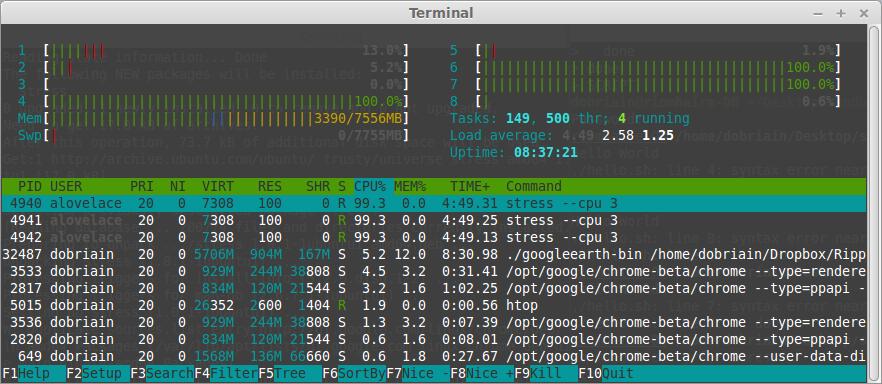
Review the processes, focusing on the stress process started by Ada Lovelace.
  $ ps -A | grep stress
   4939 pts/2    00:00:00 stress
   4940 pts/2    00:07:42 stress
   4941 pts/2    00:07:42 stress
   4942 pts/2    00:07:42 stress

  $ ps aux | grep stress
  alovela+  4939  0.0  0.0   7308   432 pts/2    S+   17:00   0:00 stress --cpu 3
  alovela+  4940 99.7  0.0   7308   100 pts/2    R+   17:00   8:03 stress --cpu 3
  alovela+  4941 99.7  0.0   7308   100 pts/2    R+   17:00   8:03 stress --cpu 3
  alovela+  4942 99.7  0.0   7308   100 pts/2    R+   17:00   8:03 stress --cpu 3
  lmenabrea  5128  0.0  0.0  11744   912 pts/5    S+   17:08   0:00 grep --colour=auto stress

  $ ps -ef | grep stress
  alovela+  4939  4225  0 17:00 pts/2    00:00:00 stress --cpu 3
  alovela+  4940  4939 99 17:00 pts/2    00:08:10 stress --cpu 3
  alovela+  4941  4939 99 17:00 pts/2    00:08:10 stress --cpu 3
  alovela+  4942  4939 99 17:00 pts/2    00:08:10 stress --cpu 3
  lmenabrea  5131  4256  0 17:08 pts/5    00:00:00 grep --colour=auto stress
Individual processes can be stopped using the kill command with the -9 switch.
  $ pgrep stress
  5224
  5225
  5226
  5257
  5258
  5259
  5260

  $ sudo kill -9 5224

  $ pgrep stress
  5225
  5226
  5257
  5258
  5259
  5260
To kill all process any of the following options will do.
  $ sudo kill $(pgrep stress)
  $ sudo pkill stress
  $ sudo killall stress

  $ pgrep stress
  $
nice is a utility for managing scheduling priority of processes. Nice values range from -19 (very high priority) to 19 (very low priority) with a value of 0 being the default priority. Looking at the top output, the column marked NI indicated the current nice value of each process.
  $ top

  top - 17:28:33 up  9:00,  3 users,  load average: 2.84, 2.83, 2.63
  Tasks: 280 total,   6 running, 274 sleeping,   0 stopped,   0 zombie
  %Cpu(s):  3.5 us,  0.6 sy,  0.1 ni, 94.9 id,  0.6 wa,  0.2 hi,  0.0 si,  0.0 st
  KiB Mem:   7738224 total,  7536796 used,   201428 free,   169464 buffers
  KiB Swap:  7942140 total,      648 used,  7941492 free.  3705332 cached Mem

    PID USER      PR  NI    VIRT    RES    SHR S  %CPU %MEM     TIME+ COMMAND
   5640 alovela+  20   0    7308    100      0 R  84.4  0.0   0:06.04 stress
   5642 alovela+  20   0    7308    100      0 R  84.4  0.0   0:06.03 stress
   5641 alovela+  20   0    7308    100      0 R  79.1  0.0   0:06.04 stress
   5643 alovela+  20   0    7308    100      0 R  79.1  0.0   0:06.04 stress
   2817 lmenabrea  20   0  846300 113908  13676 S   5.3  1.5   1:33.87 chrome
   3533 lmenabrea  20   0 1086508 395052  39320 S   5.3  5.1   1:42.02 chrome
Change the nice value of the stress processes by lowering it to 15.
  $ sudo renice 15 5640
  5640 (process ID) old priority 0, new priority 15

  $ top

  top - 17:29:31 up  9:01,  3 users,  load average: 3.83, 3.12, 2.75
  Tasks: 280 total,   7 running, 273 sleeping,   0 stopped,   0 zombie
  %Cpu(s):  3.6 us,  0.6 sy,  0.2 ni, 94.8 id,  0.6 wa,  0.2 hi,  0.0 si,  0.0 st
  KiB Mem:   7738224 total,  7561620 used,   176604 free,   173632 buffers
  KiB Swap:  7942140 total,      648 used,  7941492 free.  3718144 cached Mem

    PID USER      PR  NI    VIRT    RES    SHR S  %CPU %MEM     TIME+ COMMAND
   5640 alovela+  35  15    7308    100      0 R  99.7  0.0   1:03.97 stress
   5641 alovela+  20   0    7308    100      0 R  99.7  0.0   1:03.96 stress
   5642 alovela+  20   0    7308    100      0 R  99.7  0.0   1:03.92 stress
   5643 alovela+  20   0    7308    100      0 R  99.7  0.0   1:03.97 stress
   3533 lmenabrea  20   0 1094700 402600  39320 S   6.2  5.2   1:45.17 chrome
Change all Ada Lovelaces processes to a nice value of -5.
  $ sudo renice -5 -u alovelace
  1002 (user ID) old priority 0, new priority -5

  top - 17:30:58 up  9:02,  3 users,  load average: 4.35, 3.46, 2.90
  Tasks: 281 total,   5 running, 276 sleeping,   0 stopped,   0 zombie
  %Cpu(s):  3.7 us,  0.6 sy,  0.2 ni, 94.7 id,  0.6 wa,  0.2 hi,  0.0 si,  0.0 st
  KiB Mem:   7738224 total,  7518100 used,   220124 free,   156512 buffers
  KiB Swap:  7942140 total,      648 used,  7941492 free.  3691376 cached Mem

    PID USER      PR  NI    VIRT    RES    SHR S  %CPU %MEM     TIME+ COMMAND
   5641 alovela+  15  -5    7308    100      0 R 100.0  0.0   2:30.70 stress
   5642 alovela+  15  -5    7308    100      0 R 100.0  0.0   2:30.64 stress
   5640 alovela+  15  -5    7308    100      0 R  96.2  0.0   2:30.63 stress
   5643 alovela+  15  -5    7308    100      0 R  96.2  0.0   2:30.71 stress
      1 root      20   0   34024   3328   1496 S   0.0  0.0   0:02.25 init
      2 root      20   0       0      0      0 S   0.0  0.0   0:00.01 kthreadd
Based on the appropriate run-level, scripts are executed to start various processes to run the system and make it functional.
The init process is the last step in the boot procedure and identified by process id "1". init is responsible for starting system processes.
Runlevels are sets of system configurations. Runlevels for Debian and Ubuntu systems are:
The default runlevel is 2.
| level | Description |
|---|---|
| 0 | System halt |
| 1 | Single-User mode |
| 2 | Graphical multi-user plus networking |
| 3 | Same as "2", but not used |
| 4 | Same as "2", but not used |
| 5 | Same as "2", but not used |
| 6 | System reboot |
Display the current runlevel.
  $ runlevel
  N 2
To change runlevel immediately, use one of the commands below:
  $ sudo reboot

  $ sudo shutdown -h now		                                # Halt now

  $ sudo shutdown +3 "The system will shutdown in 3 minutes"      # Halt in 3 minutes

  Broadcast message from alovelace@linuxSys
  	(/dev/pts/3) at 9:11 ...

  The system is going down for maintenance in 3 minutes!
  The system will shutdown in 3 minutes


  $ sudo telinit 0	 # change the system runlevel to 0 will halt system
Process are managed using the GNU/Linux using an initialisation init system.
SystemV (SysV) is the traditional UNIX/Linux init system. It is essentially a number of process management scripts grouped into runlevels.
The actual scripts are all contained in the /etc/init.d directory. Each of the other rcX.d directories contain Start and Stop symbolic links to the scripts in /etc/init.d. These scripts are named either SXX<name> or KXX<name> where:
  $ file /etc/rc1.d/K20hddtemp
  /etc/rc1.d/K20hddtemp: symbolic link to `../init.d/hddtemp'
If a new script is added to /etc/init.d, manual symbolic links can be created in the various rcX.d directories or a script called update-rc.d can be used to make links to start the service in runlevels 2345 and to stop the service in runlevels 016.
  $ sudo update-rc.d hddtemp defaults
   System start/stop links for /etc/init.d/hddtemp already exist.
Individual scripts can be ran directly from /etc/init.d (or with the service utility described below). Here is an example stopping the Apache2 Server.
  /etc/init.d $ ./apache2
  Usage: apache2 {start|stop|graceful-stop|restart|reload|force-reload|start-htcacheclean|stop-htcacheclean}
  /etc/init.d $ ./apache2 stop
   * Stopping web server apache2                                                                                                                                           *

  /etc/init.d $ ./apache2 status
   * apache2 is running
Determine the runlevels for processes
Install sysv-rc-conf, a Run-level configuration for SysV like init script links.
$ sudo apt-get install sysv-rc-conf
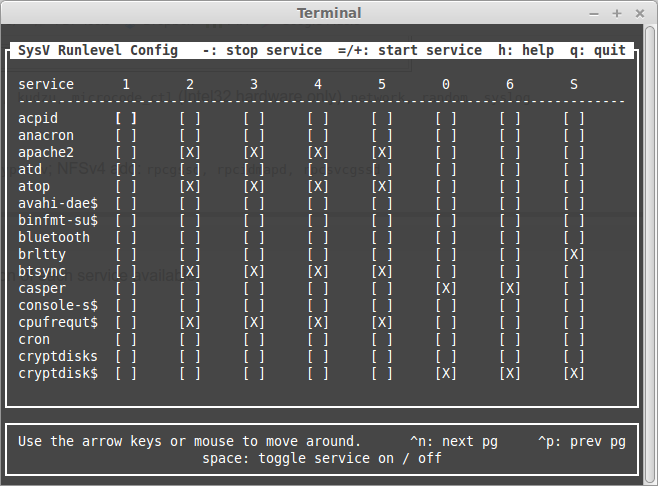
service
Use of the service utility with command options. Typical options in the scripts are:
  $ service --status-all
   [ + ]  acpid
   [ - ]  anacron
   [ + ]  apache2
   [ + ]  atd
   [ + ]  atop
   [ + ]  avahi-daemon
   [ ? ]  binfmt-support
   [ + ]  bluetooth
   [ - ]  brltty
   [ + ]  btsync
   [ - ]  casper
   [ ? ]  console-setup
   [ ? ]  cpufrequtils
Review a specific process.
  $ service networking status
  networking start/running
Start a particular process.
  $ service apache2
  Usage: apache2 {start|stop|graceful-stop|restart|reload|force-reload|start-htcacheclean|stop-htcacheclean}
  /etc/init.d $ service apache2 start
   * Starting web server apache2
   *                                                                                                                        *

  $ service apache2 status
   * apache2 is not running
initctl command has a number of command options.
  $ initctl list
  avahi-cups-reload stop/waiting
  avahi-daemon start/running, process 1127
  mountall-net stop/waiting
  mountnfs-bootclean.sh start/running
  nmbd start/running, process 1954
  passwd stop/waiting
  rc stop/waiting
  rsyslog start/running, process 919
  startpar-bridge stop/waiting
  tty4 start/running, process 1537
  udev start/running, process 569
  upstart-udev-bridge start/running, process 556
Review a specific process.
  $ initctl list | grep ^networking
  networking start/running

  $ initctl status networking
  networking start/running
Use of the systemctl utility with command options. Typical options in the scripts are:
  $ systemctl status networking
  networking start/running
vim is the Vi IMproved, a programmers text editor.
Save and Exit
| :q[uit] | Quit Vim. This fails when changes have been made. |
| :wq! | Write the current file and exit always. |
Inserting Text
| a | Append text after the cursor [count] times. |
| A | Append text at the end of the line [count] times. |
| i | Insert text before the cursor [count] times. |
| I | Insert text before the first non-blank in the line [count] times. |
| gI | Insert text in column 1 [count] times. |
| o | Begin a new line below the cursor and insert text, repeat [count] times. |
| O | Begin a new line above the cursor and insert text, repeat [count] times. |
| <ESC> | Escape from edit mode. |
Deleting text
| <Del> | Delete [count] characters under and after the cursor. |
| x | Delete [count] characters under and after the cursor. |
| X | Delete [count] characters before the cursor. |
| d{motion} | Delete text that {motion} moves over. |
| dd | Delete [count] lines. |
| D | Delete the characters under the cursor until the end of the line. |
Undo|Redo |Repeat
| u | Undo [count] changes. |
| :u[ndo] | Undo one change. |
| CTRL-R | Redo [count] changes which were undone. |
| :red[o] | Redo one change which was undone. |
| U | Undo all latest changes on one line. {Vi: while not moved off of it}. |
| . | Repeat last change, with count replaced with [count]. |
Searching
| /{pattern}[/] | Search forward for the [count]'th occurrence of {pattern}. |
| /<CR> | Search forward for the [count]'th latest used pattern. |
| ?<CR> | Search backward for the [count]'th latest used pattern. |
| n | Repeat the latest "/" or "?" [count] times. |
| N | Repeat the latest "/" or "?" [count] times in opposite direction. |
Moving Around
Basic motion commands:
| h | Move left one character (or left arrow). |
| l | Move Right one character (or right arrow). |
| k | Move up one line (or up arrow). |
| j | Move down one line (or down arrow). |
| 0 | To the first character of the line. |
| <Home> | To the first character of the line. |
| ^ | To the first non-blank character of the line. |
| $ | To the end of the line. |
| <End> | To the end of the line. |
Follow the sequence below to practice creating and editing a file using vim.
  $ vi file3.txt
  [Press i] The quick brown fox jumps over the lazy dog. [Press ESC :wq]

  $ cat file3.txt
  The quick brown fox jumps over the lazy dog.

  $ vi file3.txt
  The quick brown fox jumps over the lazy dog. [Press o]
  [Press CR]
  He is then shot by the farmer. [Press ESC :wq]

  $ vi file3.txt
  The quick brown fox jumps over the lazy dog. [Press j twice (or scroll down to last line]

  He is then shot by the farmer. [Press l or scroll right until curser is on f][Press i][type angry ]
  [Press ESC :wq]

  $ cat file3.txt
  The quick brown fox jumps over the lazy dog.

  He is then shot by the angry farmer.
Alternatively use GNU nano. Nano is ANOther editor, an enhanced free Pico clone
$ nano file3.txt
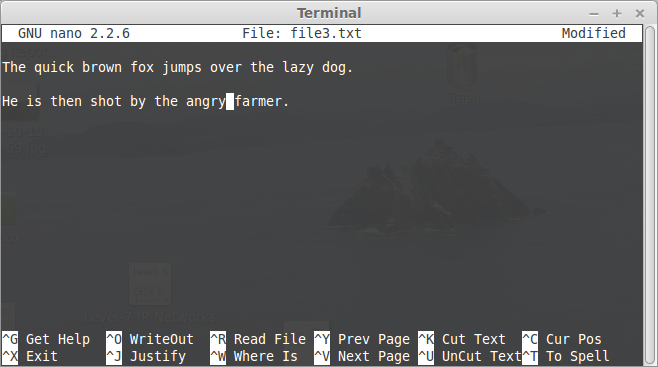
Using the following file as the basis for demonstration.
  $ cat printer.txt
  My printer will drive me insane,
  I'm always refilling its ink,
  it empties my purse,
  to make matters worse,
  it's usually on the blink!
The tac command is the inverse of cat. It prints files in reverse.
  $ cat users.txt
  lmenabrea
  cbabbage
  alovelace

  $ tac users.txt
  alovelace
  cbabbage
  lmenabrea
sed is a stream editor for filtering and transforming text.
In this example the first instance of the string insane is replaced by the string to drink. Note that the original file is not overwritten so to save the output it must be redirected into another file.
  $ sed 's/insane/to drink/' printer.txt
  My printer will drive me to drink,
  I'm always refilling its ink,
  it empties my purse,
  to make matters worse,
  it's usually on the blink!

  $ cat printer.txt
  My printer will drive me insane,
  I'm always refilling its ink,
  it empties my purse,
  to make matters worse,
  it's usually on the blink!

  $ sed 's/insane/to drink/' printer.txt > printer2.txt

  $ cat printer2.txt
  My printer will drive me to drink,
  I'm always refilling its ink,
  it empties my purse,
  to make matters worse,
  it's usually on the blink!
So what is the difference between the following outputs and why ?
  $ sed 's/a/A/' printer2.txt
  My printer will drive me to drink,
  I'm Always refilling its paper,
  it empties my wAllet,
  to mAke matters worse,
  it's usuAlly broken!


  $ sed 's/a/A/g' printer2.txt
  My printer will drive me to drink,
  I'm AlwAys refilling its pAper,
  it empties my wAllet,
  to mAke mAtters worse,
  it's usuAlly broken!
Well in the first output the first lowercase a instance on each line is replaced by an uppercase A. In the second example the addition of the g or global flag changes every instance of a to A.
What about special characters ? Lets replace ' with “.
  $ sed 's/'/"/g' printer2.txt
  >
A problem, so each special character must be escaped with a backslash.
  $ sed -e "s/'/\"/g" printer2.txt
  My printer will drive me to drink,
  I"m always refilling its paper,
  it empties my wallet,
  to make matters worse,
  it’s usually broken!
To print out lines in a file found by a pattern and suppress the other lines use the -n quiet option. The p flag indicates print the lines found.
  $ sed -n '/er/p' printer2.txt
  My printer will drive me to drink,
  I'm always refilling its paper,
  to make matters worse,
To overwrite (edit) a file sed must be used with the -i option which creates a backup of the file being edited first. A file extension is provided, in this case .bak.
  $ cat printer.txt
  My printer will drive me insane,
  I'm always refilling its ink,
  it empties my purse,
  to make matters worse,
  it's usually on the blink!

  $ sed -i.bak 's/printer/scanner/g' printer.txt

  $ cat printer.txt
  My scanner will drive me insane,
  I'm always refilling its ink,
  it empties my purse,
  to make matters worse,
  it's usually on the blink!

  $ cat printer.txt.bak
  My printer will drive me insane,
  I'm always refilling its ink,
  it empties my purse,
  to make matters worse,
  it's usually on the blink!
Example to change all white space to a single space, making parsing with other commands easier.
  $ cat printer.txt
  	My scanner will drive me insane,
    I'm always refilling its     ink,
    				it empties my purse,
    to make matters      worse,
    it's usually on the     blink!

  $ sed -i.bak 's/\s\+/ /g' printer.txt

  $ cat printer.txt
  My scanner will drive me insane,
  I'm always refilling its ink,
  it empties my purse,
  to make matters worse,
  it's usually on the blink!

  $ cat printer.txt.bak
  	My scanner will drive me insane,
    I'm always refilling its     ink,
    				it empties my purse,
    to make matters      worse,
    it's usually on the     blink!
Extract the Bluetooth messages from dmesg.
  $ dmesg | sed -n '/Bluetooth/p'
  [   35.427264] Bluetooth: Core ver 2.17
  [   35.427284] Bluetooth: HCI device and connection manager initialized
  [   35.427291] Bluetooth: HCI socket layer initialized
  [   35.427293] Bluetooth: L2CAP socket layer initialized
  [   35.427297] Bluetooth: SCO socket layer initialized
  [   35.474045] Bluetooth: can't load firmware, may not work correctly
  [   37.243507] Bluetooth: BNEP (Ethernet Emulation) ver 1.3
  [   37.243510] Bluetooth: BNEP filters: protocol multicast
  [   37.243517] Bluetooth: BNEP socket layer initialized
  [   37.244466] Bluetooth: RFCOMM TTY layer initialized
  [   37.244472] Bluetooth: RFCOMM socket layer initialized
  [   37.244476] Bluetooth: RFCOMM ver 1.11
Extract the comment lines from the /etc/netconfig file.
  $ sed -n '/^#/p' /etc/netconfig
  #
  # The network configuration file. This file is currently only used in
  # conjunction with the TI-RPC code in the libtirpc library.
  #
  # Entries consist of:
  #
  #       <network_id> <semantics> <flags> <protofamily> <protoname> \
  #               <device> <nametoaddr_libs>
  #
  # The <device> and <nametoaddr_libs> fields are always empty in this
  # implementation.
  #
The grep utility is a powerful pattern search tool. There are numerous options so only some common ones are listed here.
| Option | Meaning |
|---|---|
| -c | Count instead of presenting results |
| -E | Extended regular expression |
| -H | Print the file name for each match |
| -h | Suppress the prefixing of file names on output |
| -i | Ignore case |
| -l | List only filenames that contain matches |
| -n | Prefix output with line number |
| -r | Recursive |
| -v | Invert match |
  $ grep lmenabrea /etc/passwd
  alovelace:x:1002:1003:Ada Lovelace:/home/alovelace:/usr/bin/tcsh

  $ sudo grep -n alovelace /etc/passwd
  41:alovelace:x:1002:1003:Ada Lovelace:/home/alovelace:/usr/bin/tcsh

  $ ls /home
  alovelace  cbabbage  lmenabrea

  $ ls /home | grep alovelace
  alovelace

  $ ls /home | grep -v alovelace
  lmenabrea
  cbabbage
Recursively search all files from a point.
  $ sudo grep -r alovelace /etc/
  /etc/gshadow-:alovelace:!::alovelace
  /etc/gshadow-:babbage:$6$Lo92oBZTUm/H$qw5oIp55D.uy3E5xnzZpHKlO3R5sjJwxayizt1vqbFmLzkcnVdD3RJUhC6WbwGyaLshRv6EtofdFDLAbdrp7X/::alovelace
  /etc/gshadow:sudo:*::lmenabrea,alovelace
  /etc/gshadow:alovelace:!::alovelace
  /etc/gshadow:babbage:$6$Lo92oBZTUm/H$qw5oIp55D.uy3E5xnzZpHKlO3R5sjJwxayizt1vqbFmLzkcnVdD3RJUhC6WbwGyaLshRv6EtofdFDLAbdrp7X/::alovelace
  /etc/subuid:alovelace:231072:65536
  /etc/passwd:alovelace:x:1002:1003:Ada Lovelace:/home/alovelace:/usr/bin/tcsh
  /etc/subgid-:alovelace:231072:65536
  /etc/passwd-:alovelace:x:1002:27:Ada Lovelace:/home/alovelace:/usr/bin/tcsh
  /etc/shadow:alovelace:$6$DnyWC4UQ$8bS26d/yiiRdnlj8PTDD8KQpc.bWrDfMCqDcC1FE6XoUDMMDJ6tyn/ZbghwIiUL57kAvcPpDd2CoF5bWJl2wA/:0:0:99999:7:::
  /etc/subuid-:alovelace:231072:65536
  /etc/shadow-:alovelace:$6$DnyWC4UQ$8bS26d/yiiRdnlj8PTDD8KQpc.bWrDfMCqDcC1FE6XoUDMMDJ6tyn/ZbghwIiUL57kAvcPpDd2CoF5bWJl2wA/:16369:0:99999:7:::
  /etc/group:sudo:x:27:lmenabrea,alovelace
  /etc/group:alovelace:x:1002:alovelace
  /etc/group:babbage:x:1003:alovelace
  /etc/subgid:alovelace:231072:65536
  /etc/group-:alovelace:x:1002:alovelace
  /etc/group-:babbage:x:1003:alovelace
Recursively search but supress the filename at the beginning of the line.
  $ sudo grep -rh alovelace /etc/
  alovelace:!::alovelace
  babbage:$6$Lo92oBZTUm/H$qw5oIp55D.uy3E5xnzZpHKlO3R5sjJwxayizt1vqbFmLzkcnVdD3RJUhC6WbwGyaLshRv6EtofdFDLAbdrp7X/::alovelace
  sudo:*::lmenabrea,alovelace
  alovelace:!::alovelace
  babbage:$6$Lo92oBZTUm/H$qw5oIp55D.uy3E5xnzZpHKlO3R5sjJwxayizt1vqbFmLzkcnVdD3RJUhC6WbwGyaLshRv6EtofdFDLAbdrp7X/::alovelace
  alovelace:231072:65536
  alovelace:x:1002:1003:Ada Lovelace:/home/alovelace:/usr/bin/tcsh
  alovelace:231072:65536
  alovelace:x:1002:27:Ada Lovelace:/home/alovelace:/usr/bin/tcsh
  alovelace:$6$DnyWC4UQ$8bS26d/yiiRdnlj8PTDD8KQpc.bWrDfMCqDcC1FE6XoUDMMDJ6tyn/ZbghwIiUL57kAvcPpDd2CoF5bWJl2wA/:0:0:99999:7:::
  alovelace:231072:65536
  alovelace:$6$DnyWC4UQ$8bS26d/yiiRdnlj8PTDD8KQpc.bWrDfMCqDcC1FE6XoUDMMDJ6tyn/ZbghwIiUL57kAvcPpDd2CoF5bWJl2wA/:16369:0:99999:7:::
  sudo:x:27:lmenabrea,alovelace
  alovelace:x:1002:alovelace
  babbage:x:1003:alovelace
  alovelace:231072:65536
  alovelace:x:1002:alovelace
  babbage:x:1003:alovelace
Recursively search files and output only the files that contain matches.
  $ sudo grep -rl alovelace /etc/
  /etc/gshadow-
  /etc/gshadow
  /etc/subuid
  /etc/passwd
  /etc/subgid-
  /etc/passwd-
  /etc/shadow
  /etc/subuid-
  /etc/shadow-
  /etc/group
  /etc/subgid
  /etc/group-
Use a regular expression to extract groups where Ada Lovelace is the first listed member.
  $ sudo grep '[0-9]*:alovelace' /etc/group
  alovelace:x:1002:alovelace
  babbage:x:1003:alovelace
The cut command filters out fields or columns. Typical options are:
| Option | Meaning |
|---|---|
| -d | Define field delimiter (default is tab) |
| -c list | Cut by column position |
| -f list | Cut by field number |
  $ id
  uid=1000(lmenabrea) gid=1000(lmenabrea) groups=1000(lmenabrea),4(adm),6(disk),24(cdrom),27(sudo),30(dip),46(plugdev),108(lpadmin),110(sambashare)

  $ id | cut -d ' ' -f1,2
  uid=1000(lmenabrea) gid=1000(lmenabrea)
The sort command is used to sort lines of text files. There are a number of options so here are just some of the most used.
| Option | Meaning |
|---|---|
| -b | Ignore leading blanks |
| -f | Ignore case |
| -r | Reverse order |
| -R | Random sort |
  $ ls /home
  alovelace
  cbabbage
  lmenabrea

  $ ls /home | sort -r
  lmenabrea
  cbabbage
  alovelace
The tr translate command translates characters in a file from one form to another.
tr [OPTION] SET1 [SET2]
| Option | Meaning |
|---|---|
| -d | Delete characters in SET1 |
| -s | Squeeze repeats |
| -t | Truncate SET1 to length of SET2 |
  $ cat printer2.txt
  My printer will drive me to drink,
  I'm always refilling its paper,
  it empties my wallet,
  to make matters worse,
  it’s usually broken!

  $ cat printer2.txt | tr [:upper:] [:lower:]
  my printer will drive me to drink,
  i'm always refilling its paper,
  it empties my wallet,
  to make matters worse,
  it’s usually broken!
Another useful option is the -s or --squeese-repeats. In the example multiple blanks are replaced by a single blank.
  $ cat printer3.txt
  My        printer will         drive me to drink,
  I'm always refilling its paper,
  it empties my         wallet,


  to make matters     worse,

  it’s usually broken!

  $ cat printer3.txt | tr -s [:space:]
  My printer will drive me to drink,
  I'm always refilling its paper,
  it empties my wallet,
  to make matters worse,
  it’s usually broken!
Another example removes the horizontal and vertical blanks and then replaces spaces with tabs.
  $ cat printer3.txt
  My        printer will         drive me to drink,
  I'm always refilling its paper,
  it empties my         wallet,


  to make matters     worse,

  it’s usually broken!
  dobriain@PotatoCrisps:~/Sandbox$ cat printer3.txt | tr -s [:space:]
  My printer will drive me to drink,
  I'm always refilling its paper,
  it empties my wallet,
  to make matters worse,
  it’s usually broken!

  $ cat printer3.txt | tr -s [:space:] | tr -s [:blank:] '\t'
  My	printer	will	drive	me	to	drink,
  I'm	always	refilling	its	paper,
  it	empties	my	wallet,
  to	make	matters	worse,
  it’s	usually	broken!
To write a file to standard output with line numbers added use the nl command.
  $ ls /home | nl > users.txt

  $ cat users.txt
       1	lmenabrea
       2	cbabbage
       3	alovelace

  $ ls /home | nl | sed 's/^[ \t]* //g' | sed 's/\t/ /g'
  1 lmenabrea
  2 cbabbage
  3 alovelace

  $ ls /home | nl | sed 's/^[ \t]* //g' | sed 's/\t/ /g' > users_list.txt

  $ cat users_list.txt
  1 alovelace
  2 cbabbage
  3 johnny
The join command is used to join lines of two files on a common field. In the example the common field is the line number, the output links these as shown.
  $ cat roles.txt
  1 mathematician
  2 inventor
  3 programmer

  $ join users_list.txt roles.txt
  1 lmenabrea mathematician
  2 cbabbage inventor
  3 alovelace programmer
The uniq utility can be used to filter matching lines from input to output. The -c option prefix lines by the number of occurrences while the -u switch option only prints unique lines. -w can be used to compare no more than N characters in lines.
  $ cat numbers.txt
  1 2 5 3 3 4 8 9 7 6 5 4 3 2 5 6 7 8 9 1 2 5 3 3 4 8 9 7 6 5 4 3 2 5 6 7 8 9 1 2 5 3 3 4 8 9 7 6 5 4 3 2 5 6 7 8 9 1 2 5 3 3 4 8 9 7 6 5 4 3 2 5 6 7 8 9 1 2 5 3 3 4 8 9 7 6 5 4 3 2 5 6 7 8 9 1

  $ cat numbers.txt | sed 's/ /\n/g' | sort | uniq
  1
  2
  3
  4
  5
  6
  7
  8
  9
awk is a pattern scanning and processing language. This is a whole language in itself so it is best analise an example.
  $ df -h
  Filesystem                 Size  Used Avail Use% Mounted on
  /dev/mapper/mint--vg-root  451G  155G  273G  37% /
  none                       4.0K     0  4.0K   0% /sys/fs/cgroup
  udev                       3.7G  4.0K  3.7G   1% /dev
  tmpfs                      756M  1.7M  755M   1% /run
  none                       5.0M     0  5.0M   0% /run/lock
  none                       3.7G   27M  3.7G   1% /run/shm
  none                       100M   20K  100M   1% /run/user
  /dev/sda1                  236M   77M  147M  35% /boot

  $ df -h | awk '/none/'
  none                       4.0K     0  4.0K   0% /sys/fs/cgroup
  none                       5.0M     0  5.0M   0% /run/lock
  none                       3.7G   27M  3.7G   1% /run/shm
  none                       100M   20K  100M   1% /run/user

  $ df -h | awk '/none/ {print $6, "\t", $4}'
  /sys/fs/cgroup 	 4.0K
  /run/lock 	 5.0M
  /run/shm 	 3.7G
  /run/user 	 100M
GNU tar is the GNU version of the tar archiving utility. Originally that was the tape archive. It is useful to tar up a directory and all the directories and file therein as a single file, the tar archive file. The GNU tar program can do this. The resultant file is generally called a tarball.
  $ tar -cf sandbox.tar sandbox

  $ $ file sandbox.tar
  sandbox.tar: POSIX tar archive (GNU)
Review a tar archive with the -t or --list option to see a table of contents for the archive.
  $ tar -tf sandbox.tar
  sandbox/
  sandbox/file2.txt
  sandbox/file1.txt
  sandbox/file3.txt
  sandbox/hello.sh
Remove the original directory.
$ rm -r sandbox
Extract the archive and confirm the directory is recovered.
  $ tar -xf sandbox.tar

  $ ls sandbox
  file1.txt  file2.txt  file3.txt  hello.sh
The tar archive can be compressed to reduce file size. For example gzip which reduces the size of files using Lempel-Ziv coding (LZ77) can be applied to the tarball. tar has the ability to incorporate compression functions as well as archiving and perform both functions with the same command.
  $ tar sandbox.tar

  $ ls -l |grep sandbox.tar
  -rw-r--r-- 1 lmenabrea lmenabrea     506 Oct 24 13:49 sandbox.tar.gz
To reverse this process use the gunzip command.
  $ gunzip sandbox.tar.gz

  $ ls -l |grep sandbox.tar
  -rw-r--r-- 1 lmenabrea lmenabrea   10240 Oct 24 13:49 sandbox.tar
An alternative approach is to use the bzip2 utility which uses the Burrows-Wheeler block sorting text compression algorithm, and Huffman coding. bzip2 compression is generally considerably better that the more conventional LZ77/LZ78-based compressors.
  $ bzip2 sandbox.tar

  $ ls -l |grep sandbox.tar
  -rw-r--r-- 1 lmenabrea lmenabrea     507 Oct 24 13:49 sandbox.tar.bz2
The reverse process is similar to what has been seen for gunzip.
  $ bunzip2 sandbox.tar.bz2

  $ ls -l |grep sandbox.tar
  -rw-r--r-- 1 lmenabrea lmenabrea   10240 Oct 24 13:49 sandbox.tar
Fortunately the tar utility offers the ability to both archive and compress in one operation, here is an example using gzip. Note the file extension for a gzipped archives is either .tar.gz or simply .tgz. The z switch in the command instructs that the directory be archived and gzipped.
  $ tar -czf sandbox.tar.gz sandbox

  $ ls -l |grep sandbox.tar
  -rw-r--r-- 1 lmenabrea lmenabrea     451 Oct 24 13:56 sandbox.tar.gz

  $ file sandbox.tar.gz
  sandbox.tar.gz: gzip compressed data, from Unix, last modified: Fri Oct 24 13:56:47 2014
A similar process can be achieved for bzip2, the end extension being .tar.bz2 or .tbz2 by convention. The j switch is used to archive and bzip2.
  $ tar -cjf sandbox.tar.bz2 sandbox

  $ ls -l |grep sandbox.tar
  -rw-r--r-- 1 lmenabrea lmenabrea     463 Oct 24 13:56 sandbox.tar.bz2

  $ file sandbox.tar.bz2
  sandbox.tar.bz2: bzip2 compressed data, block size = 900k
An even newer compression tool is xz based on the Lempel–Ziv–Markov chain algorithm (LZMA).
  $ tar -cJf sandbox.tar.xz sandbox

  $ ls -l |grep sandbox.tar
  -rw-r--r-- 1 lmenabrea lmenabrea     463 Oct 24 13:56 sandbox.tar.bz2

  $ file sandbox.tar.xz
  Sandbox.xz: XZ compressed data
Comparing the relative sizes of the archive and the three compressed versions. When the requirement is very fast compression, the gzip was the best option, it has also very small memory footprint, making it ideal for systems with limited memory. bzip2 creates about 15% smaller files than gzip on average however it compresses at a slower rate than gzip. For decompression a similar picture emerges with gzip the fastest. bzip2 is a lot slower taking four to twelve times more time to decompress than gzip. The newer xz is now showing to be slightly better performance in terms of compression than the others.
  $ ls -l | grep sandbox.tar
  -rw-r--r--  1 dobriain dobriain 27832320 Feb 16 13:40 sandbox.tar
  -rw-r--r--  1 dobriain dobriain 26269531 Feb 16 13:41 sandbox.tar.bz2
  -rw-r--r--  1 dobriain dobriain 26035700 Feb 16 13:40 sandbox.tar.gz
  -rw-r--r--  1 dobriain dobriain 25865068 Feb 16 13:41 sandbox.tar.xz
In GNU/Linux RAID is often grouped with Logical Volume Manager (LVM) as they share functionality however they are not the same. LVM allows for the clustering of disks, Physical Volumes (PV) into Volume Groups (VG), these VGs are mapped to Logical Volumes (LV) that are interpreted by the OS as partitions.
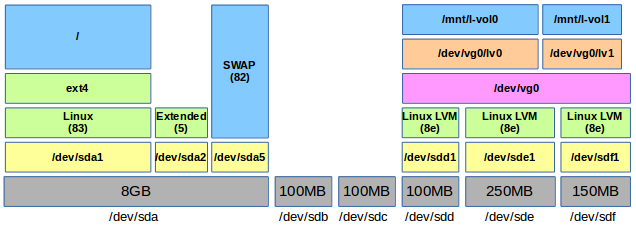
Referring to the diagram, the physical volumes sdd, sde and sdf are grouped together into a logical volume vg0. Two logical volumes lv0 and lv1 are created on vg0 thereby allowing the logical volumes to be numbered and sized without recourse to the size of the individual physical volumes, save the overall size limitation of their sum.
Install Logical Volume Manager v2 (lvm2).
$ sudo apt-get install lvm2
To demonstrate a number of additional drives are connected to the server. To view them use the command lsblk.
  $ lsblk
  NAME   MAJ:MIN RM   SIZE RO TYPE MOUNTPOINT
  sda      8:0    0     8G  0 disk
  ├─sda1   8:1    0     7G  0 part /
  ├─sda2   8:2    0     1K  0 part
  └─sda5   8:5    0  1022M  0 part [SWAP]
  sdb      8:16   0   100M  0 disk
  sdc      8:32   0   100M  0 disk
  sdd      8:48   0   100M  0 disk
  sde      8:64   0   250M  0 disk
  sdf      8:80   0   150M  0 disk
  sr0     11:0    1  1024M  0 rom
Taking the last three (sdd, sde, sdf) create partitions on each of type Linux LVM (id: 8e) using fdisk.
  $ sudo fdisk /dev/sdd
  [sudo] password for lmenabrea: italy

  Command (m for help): n
  Partition type:
     p   primary (0 primary, 0 extended, 4 free)
     e   extended
  Select (default p): p
  Partition number (1-4, default 1): 1
  First sector (2048-511999, default 2048):
  Using default value 2048
  Last sector, +sectors or +size{K,M,G} (2048-511999, default 511999):
  Using default value 511999

  Command (m for help): t
  Selected partition 1
  Hex code (type L to list codes): 8e
  Changed system type of partition 1 to 8e (Linux LVM)

  Command (m for help): p

  Disk /dev/sdd: 262 MB, 262144000 bytes
  64 heads, 32 sectors/track, 250 cylinders, total 512000 sectors
  Units = sectors of 1 * 512 = 512 bytes
  Sector size (logical/physical): 512 bytes / 512 bytes
  I/O size (minimum/optimal): 512 bytes / 512 bytes
  Disk identifier: 0x3111f8f6

     Device Boot      Start         End      Blocks   Id  System
  /dev/sdd1            2048      511999      254976   8e  Linux LVM

  Command (m for help): w
  The partition table has been altered!

  Calling ioctl() to re-read partition table.
  Syncing disks.
Perform the same action on the sde and sdf drives. When complete review all three.
  $ sudo fdisk -l /dev/sdd

  Disk /dev/sdd: 104 MB, 104857600 bytes
  64 heads, 32 sectors/track, 100 cylinders, total 204800 sectors
  Units = sectors of 1 * 512 = 512 bytes
  Sector size (logical/physical): 512 bytes / 512 bytes
  I/O size (minimum/optimal): 512 bytes / 512 bytes
  Disk identifier: 0xb4faec8d

     Device Boot      Start         End      Blocks   Id  System
  /dev/sdd1            2048      204799      101376   8e  Linux LVM

  $ sudo fdisk -l /dev/sde

  Disk /dev/sde: 262 MB, 262144000 bytes
  64 heads, 32 sectors/track, 250 cylinders, total 512000 sectors
  Units = sectors of 1 * 512 = 512 bytes
  Sector size (logical/physical): 512 bytes / 512 bytes
  I/O size (minimum/optimal): 512 bytes / 512 bytes
  Disk identifier: 0x3111f8f6

     Device Boot      Start         End      Blocks   Id  System
  /dev/sde1            2048      511999      254976   8e  Linux LVM


  $ sudo fdisk -l /dev/sdf

  Disk /dev/sdf: 157 MB, 157286400 bytes
  64 heads, 32 sectors/track, 150 cylinders, total 307200 sectors
  Units = sectors of 1 * 512 = 512 bytes
  Sector size (logical/physical): 512 bytes / 512 bytes
  I/O size (minimum/optimal): 512 bytes / 512 bytes
  Disk identifier: 0x9bd4d0f0

     Device Boot      Start         End      Blocks   Id  System
  /dev/sdf1            2048      307199      152576   8e  Linux LVM

  $ lsblk
  NAME   MAJ:MIN RM   SIZE RO TYPE MOUNTPOINT
  sda      8:0    0     8G  0 disk
  ├─sda1   8:1    0     7G  0 part /
  ├─sda2   8:2    0     1K  0 part
  └─sda5   8:5    0  1022M  0 part [SWAP]
  sdb      8:16   0   100M  0 disk
  sdc      8:32   0   100M  0 disk
  sdd      8:48   0   100M  0 disk
  └─sdd1   8:49   0    99M  0 part
  sde      8:64   0   250M  0 disk
  └─sde1   8:65   0   249M  0 part
  sdf      8:80   0   150M  0 disk
  └─sdf1   8:81   0   149M  0 part
  sr0     11:0    1  1024M  0 rom
Initialise these disks for use by LVM with the pvcreate command.
  $ sudo pvcreate /dev/sdd1
    Physical volume "/dev/sdd1" successfully created
  $ sudo pvcreate /dev/sde1
    Physical volume "/dev/sde1" successfully created
  $ sudo pvcreate /dev/sdf1
    Physical volume "/dev/sdf1" successfully created
Create as volume group into which the physical volumes are incorporated.
  $ sudo vgcreate vg0 /dev/sdd1 /dev/sde1 /dev/sdf1
    Volume group "vg0" successfully created
Now create logical volumes as necessary up to the limits on size imposed by the overall volume group size. In this way the logical volumes loose the limitations of the physical volumes. Note the middle command where I attempted to create a logical volume beyond the available space remaining in the volume group.
  $ sudo lvcreate --size 300M --name lv0 vg0
    Logical volume "lv0" created

  $ sudo lvcreate --size 200M --name lv1 vg0
    Volume group "vg0" has insufficient free space (48 extents): 50 required.

  $ sudo lvcreate --size 175M --name lv1 vg0
    Rounding up size to full physical extent 176.00 MiB
    Logical volume "lv1" created
Display the physical and logical volumes.
  $ sudo pvdisplay
    --- Physical volume ---
    PV Name               /dev/sdd1
    VG Name               vg0
    PV Size               99.00 MiB / not usable 3.00 MiB
    Allocatable           yes
    PE Size               4.00 MiB
    Total PE              24
    Free PE               4
    Allocated PE          20
    PV UUID               rl7d2z-dmUs-8p8I-hrSW-zViM-Di3x-7Bw0gb

    --- Physical volume ---
    PV Name               /dev/sde1
    VG Name               vg0
    PV Size               249.00 MiB / not usable 0
    Allocatable           yes (but full)
    PE Size               4.00 MiB
    Total PE              62
    Free PE               0
    Allocated PE          62
    PV UUID               O3veTC-6QUv-q0A6-6wzx-ag2Q-Gm8e-seQIYm

    --- Physical volume ---
    PV Name               /dev/sdf1
    VG Name               vg0
    PV Size               149.00 MiB / not usable 0
    Allocatable           yes (but full)
    PE Size               4.00 MiB
    Total PE              37
    Free PE               0
    Allocated PE          37
    PV UUID               1kLr3o-o6Ff-U0uq-6404-qgKR-PtzV-0xale8


  $ sudo vgdisplay
    --- Volume group ---
    VG Name               vg0
    System ID
    Format                lvm2
    Metadata Areas        3
    Metadata Sequence No  3
    VG Access             read/write
    VG Status             resizable
    MAX LV                0
    Cur LV                2
    Open LV               0
    Max PV                0
    Cur PV                3
    Act PV                3
    VG Size               492.00 MiB
    PE Size               4.00 MiB
    Total PE              123
    Alloc PE / Size       119 / 476.00 MiB
    Free  PE / Size       4 / 16.00 MiB
    VG UUID               DFYG3z-dTyu-9sQq-RMys-T8Rn-n2Vm-kacVte


  $ sudo lvdisplay
    --- Logical volume ---
    LV Path                /dev/vg0/lv0
    LV Name                lv0
    VG Name                vg0
    LV UUID                2cyBm2-0u7C-wBR8-DMjZ-p4lb-gJLW-CmLubL
    LV Write Access        read/write
    LV Creation host, time ubuntu-vm, 2014-12-03 06:57:49 +0000
    LV Status              available
    # open                 0
    LV Size                300.00 MiB
    Current LE             75
    Segments               2
    Allocation             inherit
    Read ahead sectors     auto
    - currently set to     256
    Block device           252:0

    --- Logical volume ---
    LV Path                /dev/vg0/lv1
    LV Name                lv1
    VG Name                vg0
    LV UUID                ixcdGg-LDMy-Rtnc-kIU6-03R4-L1Hl-7giTDI
    LV Write Access        read/write
    LV Creation host, time ubuntu-vm, 2014-12-03 06:58:26 +0000
    LV Status              available
    # open                 0
    LV Size                176.00 MiB
    Current LE             44
    Segments               2
    Allocation             inherit
    Read ahead sectors     auto
    - currently set to     256
    Block device           252:1
These logical volumes can be addressed as either:
or
Make a filesystem on the logical volumes, create mount points and mount.
  $ sudo ls /dev/mapper
  control  vg0-lv0  vg0-lv1

  $ sudo mkfs.ext4 /dev/vg0/lv0
  mke2fs 1.42.9 (4-Feb-2014)
  Filesystem label=
  OS type: Linux
  Block size=1024 (log=0)
  Fragment size=1024 (log=0)
  Stride=0 blocks, Stripe width=0 blocks
  76912 inodes, 307200 blocks
  15360 blocks (5.00%) reserved for the super user
  First data block=1
  Maximum filesystem blocks=67633152
  38 block groups
  8192 blocks per group, 8192 fragments per group
  2024 inodes per group
  Superblock backups stored on blocks:
  	8193, 24577, 40961, 57345, 73729, 204801, 221185

  Allocating group tables: done
  Writing inode tables: done
  Creating journal (8192 blocks): done
  Writing superblocks and filesystem accounting information: done

  $ sudo mkfs.ext4 /dev/vg0/lv1
  mke2fs 1.42.9 (4-Feb-2014)
  Filesystem label=
  OS type: Linux
  Block size=1024 (log=0)
  Fragment size=1024 (log=0)
  Stride=0 blocks, Stripe width=0 blocks
  45056 inodes, 180224 blocks
  9011 blocks (5.00%) reserved for the super user
  First data block=1
  Maximum filesystem blocks=67371008
  22 block groups
  8192 blocks per group, 8192 fragments per group
  2048 inodes per group
  Superblock backups stored on blocks:
  	8193, 24577, 40961, 57345, 73729

  Allocating group tables: done
  Writing inode tables: done
  Creating journal (4096 blocks): done
  Writing superblocks and filesystem accounting information: done

  $ sudo mkdir /mnt/l-vol0
  $ sudo mkdir /mnt/l-vol1

  $ sudo mount -t ext4 /dev/vg0/lv0 /mnt/l-vol0
  $ sudo mount -t ext4 /dev/vg0/lv1 /mnt/l-vol1

  $ df -h
  Filesystem           Size  Used Avail Use% Mounted on
  /dev/sda1            6.8G  1.7G  4.8G  27% /
  none                 4.0K     0  4.0K   0% /sys/fs/cgroup
  udev                 487M  4.0K  487M   1% /dev
  tmpfs                100M  460K   99M   1% /run
  none                 5.0M     0  5.0M   0% /run/lock
  none                 498M     0  498M   0% /run/shm
  none                 100M     0  100M   0% /run/user
  /dev/mapper/vg0-lv0  283M  2.1M  262M   1% /mnt/l-vol0
  /dev/mapper/vg0-lv1  167M  1.6M  153M   1% /mnt/l-vol1

  $ mount | grep lv
  /dev/mapper/vg0-lv0 on /mnt/l-vol0 type ext4 (rw)
  /dev/mapper/vg0-lv1 on /mnt/l-vol1 type ext4 (rw)
For persistence add to the /etc/fstab file.
  $ sudo -s
  # echo -e "\n#Entries for LVM Logical volumes" >> /etc/fstab
  # echo "/dev/vg0/lv0   /mnt/l-vol0     ext4     defaults      0    0" >> /etc/fstab
  # echo "/dev/vg0/lv1   /mnt/l-vol1     ext4     defaults      0    0" >> /etc/fstab
  # exit

  $ sudo tail -3 /etc/fstab
  #Entries for LVM Logical volumes
  /dev/vg0/lv0   /mnt/l-vol0     ext4     defaults      0    0
  /dev/vg0/lv1   /mnt/l-vol1     ext4     defaults      0    0
Mount the logical volumes and confirm.
  $ sudo mount /dev/vg0/lv0
  $ sudo mount /dev/vg0/lv1

  $ mount | grep lv
  /dev/mapper/vg0-lv0 on /mnt/l-vol0 type ext4 (rw)
  /dev/mapper/vg0-lv1 on /mnt/l-vol1 type ext4 (rw)

  $ df -h | grep lv
  /dev/mapper/vg0-lv0  283M  2.1M  262M   1% /mnt/l-vol0
  /dev/mapper/vg0-lv1  167M  1.6M  153M   1% /mnt/l-vol1
Sometimes the logical volumes may not appear in the /dev/mapper device list. This can usually be rectified by activating the volume group as follows.
  $ sudo vgchange –-activate y vg0

    or

  $ sudo vgchange –a y vg0
What if I wanted to increase the size of a logical volume, say lv0.
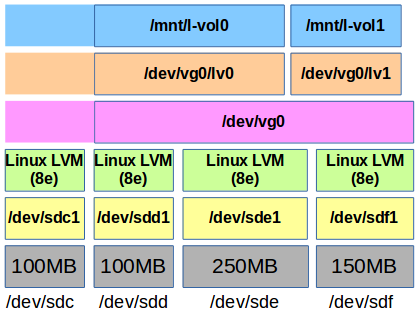
Create a partition of type Linux LVM (8e) on the drive /dev/sdc.
  $ sudo fdisk /dev/sdc
  Device contains neither a valid DOS partition table, nor Sun, SGI or OSF disklabel
  Building a new DOS disklabel with disk identifier 0x08cafc4c.
  Changes will remain in memory only, until you decide to write them.
  After that, of course, the previous content won't be recoverable.

  Warning: invalid flag 0x0000 of partition table 4 will be corrected by w(rite)

  Command (m for help): n
  Partition type:
     p   primary (0 primary, 0 extended, 4 free)
     e   extended
  Select (default p): p
  Partition number (1-4, default 1): 1
  First sector (2048-204799, default 2048):
  Using default value 2048
  Last sector, +sectors or +size{K,M,G} (2048-204799, default 204799):
  Using default value 204799

  Command (m for help): t
  Selected partition 1
  Hex code (type L to list codes): 8e
  Changed system type of partition 1 to 8e (Linux LVM)

  Command (m for help): p

  Disk /dev/sdc: 104 MB, 104857600 bytes
  64 heads, 32 sectors/track, 100 cylinders, total 204800 sectors
  Units = sectors of 1 * 512 = 512 bytes
  Sector size (logical/physical): 512 bytes / 512 bytes
  I/O size (minimum/optimal): 512 bytes / 512 bytes
  Disk identifier: 0x08cafc4c

     Device Boot      Start         End      Blocks   Id  System
  /dev/sdc1            2048      204799      101376   8e  Linux LVM

  Command (m for help): w
  The partition table has been altered!

  Calling ioctl() to re-read partition table.
  Syncing disks.
Extend the volume group by adding the new physical volume, notice the volume groups increased size.
  $ sudo vgextend vg0 /dev/sdc1
    No physical volume label read from /dev/sdc1
    Physical volume "/dev/sdc1" successfully created
    Volume group "vg0" successfully extended

  $ sudo vgdisplay
    --- Volume group ---
    VG Name               vg0
    System ID
    Format                lvm2
    Metadata Areas        4
    Metadata Sequence No  4
    VG Access             read/write
    VG Status             resizable
    MAX LV                0
    Cur LV                2
    Open LV               0
    Max PV                0
    Cur PV                4
    Act PV                4
    VG Size               588.00 MiB
    PE Size               4.00 MiB
    Total PE              147
    Alloc PE / Size       119 / 476.00 MiB
    Free  PE / Size       28 / 112.00 MiB
    VG UUID               GFt0V6-VakN-cASe-FE5Z-0fZp-jKw0-ruhgT2
Display the logical volume to be extended.
  t$ sudo lvdisplay /dev/vg0/lv0
    --- Logical volume ---
    LV Path                /dev/vg0/lv0
    LV Name                lv0
    VG Name                vg0
    LV UUID                oAfAgg-Rhua-A457-2TCT-d1tY-J2un-CmlKt5
    LV Write Access        read/write
    LV Creation host, time ubuntu-vm, 2014-12-08 06:14:25 +0000
    LV Status              available
    # open                 0
    LV Size                300.00 MiB
    Current LE             75
    Segments               2
    Allocation             inherit
    Read ahead sectors     auto
    - currently set to     256
    Block device           252:0
Now extend the logical volume by 100 MB.
  $ sudo lvextend --size +100M /dev/vg0/lv0
    Extending logical volume lv0 to 400.00 MiB
    Logical volume lv0 successfully resized

  $ sudo lvdisplay /dev/vg0/lv0
    --- Logical volume ---
    LV Path                /dev/vg0/lv0
    LV Name                lv0
    VG Name                vg0
    LV UUID                oAfAgg-Rhua-A457-2TCT-d1tY-J2un-CmlKt5
    LV Write Access        read/write
    LV Creation host, time ubuntu-vm, 2014-12-08 06:14:25 +0000
    LV Status              available
    # open                 0
    LV Size                400.00 MiB
    Current LE             100
    Segments               4
    Allocation             inherit
    Read ahead sectors     auto
    - currently set to     256
    Block device           252:0
Alternative approach would be to use the command below. This defines the actual size the new logical volume should be.
  $ sudo lvextend --size 400M /dev/vg0/lv0
    Extending logical volume lv0 to 400.00 MiB
    Logical volume lv0 successfully resized
In a similar mechanism a logical volume can be reduced. Here lv0 is reduced to 100MB.
  $ sudo lvreduce --size 100M /dev/vg0/lv0
    WARNING: Reducing active logical volume to 100.00 MiB
    THIS MAY DESTROY YOUR DATA (filesystem etc.)
  Do you really want to reduce lv0? [y/n]: y
    Reducing logical volume lv0 to 100.00 MiB
    Logical volume lv0 successfully resized
Create a filesystem on the lv0, mount and add a file.
  $ sudo mkfs.ext4 /dev/vg0/lv0
  mke2fs 1.42.9 (4-Feb-2014)
  Filesystem label=
  OS type: Linux
  Block size=1024 (log=0)
  Fragment size=1024 (log=0)
  Stride=0 blocks, Stripe width=0 blocks
  25688 inodes, 102400 blocks
  5120 blocks (5.00%) reserved for the super user
  First data block=1
  Maximum filesystem blocks=67371008
  13 block groups
  8192 blocks per group, 8192 fragments per group
  1976 inodes per group
  Superblock backups stored on blocks:
  	8193, 24577, 40961, 57345, 73729

  Allocating group tables: done
  Writing inode tables: done
  Creating journal (4096 blocks): done
  Writing superblocks and filesystem accounting information: done

  $ sudo mount /dev/vg0/lv0 /mnt/l-vol0

  $ sudo -s
  # echo "My file" > /mnt/l-vol0/my_file
  # sudo cat /mnt/l-vol0/my_file
  My file
When resizing volumes it is useful to create a snapshot of logical volumes with the lvcreate -s or lvcreate --snapshot switch to ensure that data is not lost. To do so there must be enough room on the volume group first. The following is a demonstration of a snapshot for lv0.
  $ sudo lvcreate --size 100M --snapshot --name l-vol0-snapshot /dev/vg0/lv0
    Logical volume "l-vol0-snapshot" created

  $ sudo mkdir /mnt/l-vol0-snapshot/
  $ sudo mount /dev/vg0/l-vol0-snapshot /mnt/l-vol0-snapshot/
Confirm the new snapshot by checking for the my_file on the mount.
  $ sudo cat /mnt/l-vol0-snapshot/my_file
  My file
Backup the snapshot.
  $ sudo tar -cf /backups/l-vol0-snapshot.tar /mnt/l-vol0-snapshot/
  $ sudo file /backups/l-vol0-snapshot.tar
  /tmp/l-vol0-snapshot.tar: POSIX tar archive (GNU)
Remove volumes in the reverse order. First remove the lines from /etc/fstab and then umount before removing the LVM devices.
  $ sudo umount /dev/vg0/lv0
  $ sudo umount /dev/vg0/lv1

  $ sudo lvremove /dev/vg0/lv0
  Do you really want to remove and DISCARD active logical volume lv0? [y/n]: y
    Logical volume "lv0" successfully removed

  $ sudo lvremove /dev/vg0/lv1
  Do you really want to remove and DISCARD active logical volume lv1? [y/n]: y
    Logical volume "lv1" successfully removed

  $ sudo vgremove /dev/vg0
    Volume group "vg0" successfully removed

  $ sudo pvremove /dev/sdd1
    Labels on physical volume "/dev/sdd1" successfully wiped

  $ sudo pvremove /dev/sde1
    Labels on physical volume "/dev/sde1" successfully wiped

  $ sudo pvremove /dev/sdf1
    Labels on physical volume "/dev/sdf1" successfully wiped
With RAID technology it is possible to achieve high levels of storage reliability from low cost and less reliable harddisk components. This is possible by arranging the devices into arrays for redundancy. RAID describes a number of methods to divide and replicate data among multiple harddisk drives. Each RAID Type offers different levels of data reliability and/or Input/Output (I/O) performance. Physical disks grouped in such configurations are termed RAID arrays. The RAID array distributes data across multiple disks, but from the OS perspective the array is seen as one single disk.
Here is a description of the basic concepts on some RAID types:
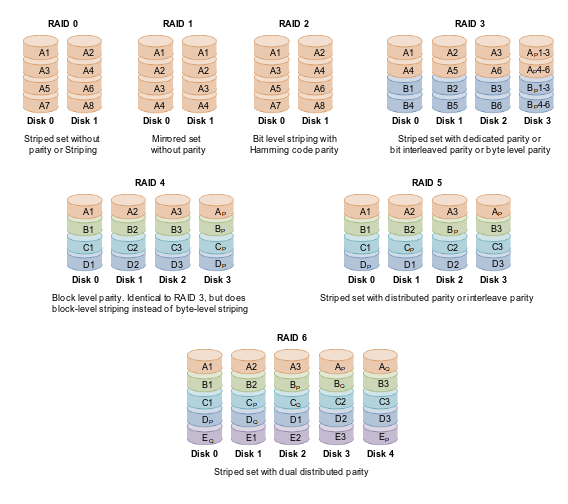
| RAID Type | Description |
|---|---|
| 0 | The data is distributed equally between one or more disks without information on parity or redundancy, without offering fault tolerance. Data is distributed across the disks to increase storage volume, if the disk fails physically, the information will be lost and will have to be recovered from backup copies. What does increase is the performance, depending on the RAID 0 implementation, given that the read and write options will be divided among the different disks. This is often confused with LVM. |
| 1 | This RAID type creates an exact copy, a mirror on a set of two or more disks in an array. RAID 1 is useful for the reading performance which can increase lineally with the number of disks. It also adds fault tolerance where a fault occurs to one of the disks as the same information is available on each. RAID 1 is usually adequate for High Availability (HA) where resources are needed critically. This configuration also makes it possible to hot swap disks. If a fault is detected in any of the disks, it can be replaced without switching off the system. |
| 2 | Unlike earlier RAID types with RAID 2 the data is divided into bits and redundant codes are used for error correction. It is not widely used as a large number of disks is required, one per system bit plus redundancy bits, so for a 32 bit system 39 disks are required. |
| 3 | RAID3 uses byte divisions with an additional disk dedicated to the parity of blocks. This is not very widely used type. Depending on the size of the data and the positions, it does not provide simultaneous accesses. |
| 4 | RAID 4 is similar to RAID 3, however it stripes the data at the block level, instead of byte level, which means that it is possible to service simultaneous requests when only a single block is requested. |
| 5 | Block level striping is used, distributing the parity among the disks. It is widely used, due to the simple parity scheme and due to the fact that this calculation is implemented simply by the hardware, with good performance levels. |
| 6 | Block level striping like in RAID 5 with the addition of another parity block, i.e. Block level striping with two parity blocks. |
| 01 | A mirror stripe is a nested RAID level where groups of RAID 0 arrays are used in a RAID 1 array to create a mirror between them. An advantage is that, in the event of an error, the RAID 0 level used may be rebuilt thanks to the other copy, but if more disks need to be added, they have to be added to all the RAID 0 groups equally. |
| 10 | Striping of mirrors where groups of RAID 1 arrays are used in a RAID 0 array. In each RAID 1 group if a disk fails there is no loss of data. RAID 10 arrays are used with high performance databases as they include both fault tolerance and the speed. |
Looking at an example to build a RAID array across four disks. Create and format a RAID-5 partition using these four units. Configure the system to automatically mount it into a given location and so that users without administrative rights are allowed to Read and Write files in the partition.
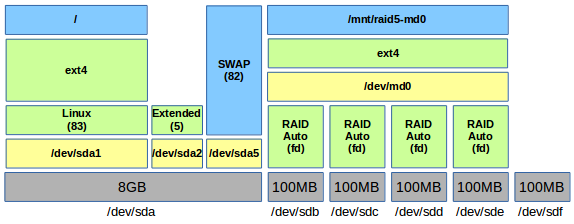
The steps:
The GNU/Linux mdadm utility provides GNU/Linux Software RAID. Each RAID device is a virtual device created from two or more real block devices. This allows multiple devices to be combined into a single device upon which a single file-system is installed. This example will demonstrate RAID 5 across four disks. The disks will have a file-system created across the RAID array md0.
$ sudo apt-get install mdadm
In the example we have four 100 MB drives, /dev/sdb, /dev/sdc, /dev/sdd, /dev/sde.
Use the lsblk command to see the physical layout.
  $ lsblk
  NAME   MAJ:MIN RM   SIZE RO TYPE MOUNTPOINT
  sda      8:0    0     8G  0 disk
  ├─sda1   8:1    0     7G  0 part /
  ├─sda2   8:2    0     1K  0 part
  └─sda5   8:5    0  1022M  0 part [SWAP]
  sdb      8:16   0   100M  0 disk
  sdc      8:32   0   100M  0 disk
  sdd      8:48   0   100M  0 disk
  sde      8:64   0   100M  0 disk
  sdf      8:80   0   100M  0 disk
  sr0     11:0    1  1024M  0 rom
Delete existing partitions on the disks. Here is an example for /dev/sdb, repeat for each of the disks.
  $ sudo fdisk /dev/sdb

  Command (m for help): d
  Selected partition 1

  Command (m for help): p

  Disk /dev/sdc: 8004 MB, 8004304896 bytes
  35 heads, 21 sectors/track, 21269 cylinders, total 15633408 sectors
  Units = sectors of 1 * 512 = 512 bytes
  Sector size (logical/physical): 512 bytes / 512 bytes
  I/O size (minimum/optimal): 512 bytes / 512 bytes
  Disk identifier: 0x00000000

     Device Boot      Start         End      Blocks   Id  System

  Command (m for help): w
  The partition table has been altered!

  Calling ioctl() to re-read partition table.

  WARNING: Re-reading the partition table failed with error 16: Device or resource busy.
  The kernel still uses the old table. The new table will be used at
  the next reboot or after you run partprobe(8) or kpartx(8)
  Syncing disks.
Create a RAID 5 Array /dev/md0 comprising block-level striping with distributed parity from the four drives /dev/sdb, /dev/sdc, /dev/sdd and /dev/sde.
  $ sudo mdadm --create /dev/md0 --level=5 --raid-devices=4 /dev/sdb /dev/sdc /dev/sdd /dev/sde
  mdadm: Defaulting to version 1.2 metadata
  mdadm: array /dev/md0 started.
Confirm array is started.
  $ cat /proc/mdstat
  Personalities : [linear] [multipath] [raid0] [raid1] [raid6] [raid5] [raid4] [raid10]
  md0 : active raid5 sde[4] sdd[2] sdc[1] sdb[0]
        305664 blocks super 1.2 level 5, 512k chunk, algorithm 2 [4/4] [UUUU]


  $ sudo mdadm --detail /dev/md0
  [sudo] password for alovelace:
  /dev/md0:
          Version : 1.2
    Creation Time : Fri Dec 12 18:46:33 2014
       Raid Level : raid5
       Array Size : 305664 (298.55 MiB 313.00 MB)
    Used Dev Size : 101888 (99.52 MiB 104.33 MB)
     Raid Devices : 4
    Total Devices : 4
      Persistence : Superblock is persistent

      Update Time : Fri Dec 12 18:46:44 2014
            State : clean
   Active Devices : 4
  Working Devices : 4
   Failed Devices : 0
    Spare Devices : 0

           Layout : left-symmetric
       Chunk Size : 512K

             Name : ubuntu-vm:0  (local to host ubuntu-vm)
             UUID : 31c0ae28:3cc27473:5dc6bc0c:17f01003
           Events : 18

      Number   Major   Minor   RaidDevice State
         0       8       16        0      active sync   /dev/sdb
         1       8       32        1      active sync   /dev/sdc
         2       8       48        2      active sync   /dev/sdd
         4       8       64        3      active sync   /dev/sde
Make a file-system on the new RAID Array. In this case an GNU/Linux fourth EXTended file-system (ext4).
  $ sudo mkfs --type ext4 /dev/md0
  mke2fs 1.42.9 (4-Feb-2014)
  Filesystem label=
  OS type: Linux
  Block size=1024 (log=0)
  Fragment size=1024 (log=0)
  Stride=512 blocks, Stripe width=1536 blocks
  76608 inodes, 305664 blocks
  15283 blocks (5.00%) reserved for the super user
  First data block=1
  Maximum filesystem blocks=67633152
  38 block groups
  8192 blocks per group, 8192 fragments per group
  2016 inodes per group
  Superblock backups stored on blocks:
  	8193, 24577, 40961, 57345, 73729, 204801, 221185

  Allocating group tables: done
  Writing inode tables: done
  Creating journal (8192 blocks): done
  Writing superblocks and filesystem accounting information: done
Mount the new file-system on the OS.
  $ sudo mkdir /mnt/raid5-md0
  $ sudo chown root:disk /mnt/raid5-md0/
  $ sudo chmod 775 /mnt/raid5-md0/
Add users that require access to the drive to the disk group.
  $ sudo vi /etc/group

  ...
  disk:x:100:lmenabrea,alovelace
  ...
Make persistent, such that after a reboot the RAID array will reform. The initramfs needs to be updated so it contains the /etc/mdadm/mdadm.conf settings during boot.
  $ sudo -s
  # echo -e "\n# RAID5" >> /etc/mdadm/mdadm.conf
  # mdadm --detail --scan >> /etc/mdadm/mdadm.conf
  # echo -e "\n# Mount for RAID 5\n/dev/md0\t/mnt/raid5-md0\text4\tdefaults\t0\t0" >> /etc/fstab
  # mount -a
  # update-initramfs -u
  update-initramfs: Generating /boot/initrd.img-3.13.0-40-generic

  # exit
  $
Review the new file-system.
  $ sudo df -h /mnt/raid5-md0/

  Filesystem      Size  Used Avail Use% Mounted on
  /dev/md0        282M  2.1M  261M   1% /mnt/raid5-md0
Change the ownership and permissions of the new mount such that the group is disk and the permissions are 775.
  $ sudo chown root:disk /mnt/raid5-md0/
  $ sudo chmod 775 /mnt/raid5-md0/
Test that members of the disk group can create files on the RAID array partition.
  $ echo "This is a test" > /mnt/raid5-md0/testfile
  $ cat /mnt/raid5-md0/testfile
  This is a test
After a reboot check the RAID device exists.
  $ sudo mdadm --detail --scan
  ARRAY /dev/md0 metadata=1.2 name=ubuntu-vm:0 UUID=31c0ae28:3cc27473:5dc6bc0c:17f01003

  $ sudo mdadm --detail /dev/md0

  /dev/md0:
          Version : 1.2
    Creation Time : Fri Dec 12 18:46:33 2014
       Raid Level : raid5
       Array Size : 305664 (298.55 MiB 313.00 MB)
    Used Dev Size : 101888 (99.52 MiB 104.33 MB)
     Raid Devices : 4
    Total Devices : 4
      Persistence : Superblock is persistent

      Update Time : Fri Dec 12 19:14:00 2014
            State : clean
   Active Devices : 4
  Working Devices : 4
   Failed Devices : 0
    Spare Devices : 0

           Layout : left-symmetric
       Chunk Size : 512K

             Name : ubuntu-vm:0  (local to host ubuntu-vm)
             UUID : 31c0ae28:3cc27473:5dc6bc0c:17f01003
           Events : 18

      Number   Major   Minor   RaidDevice State
         0       8       16        0      active sync   /dev/sdb
         1       8       32        1      active sync   /dev/sdc
         2       8       48        2      active sync   /dev/sdd
         4       8       64        3      active sync   /dev/sde
Simulate a fail of the /dev/sdc disk.
$ sudo mdadm /dev/md0 --fail /dev/sdc
Upon reboot review the RAID. Notice that /dev/sdc is marked as removed.
  $ sudo mdadm --detail --scan /dev/md0
  /dev/md0:
          Version : 1.2
    Creation Time : Fri Dec 12 18:46:33 2014
       Raid Level : raid5
       Array Size : 305664 (298.55 MiB 313.00 MB)
    Used Dev Size : 101888 (99.52 MiB 104.33 MB)
     Raid Devices : 4
    Total Devices : 4
      Persistence : Superblock is persistent

      Update Time : Fri Dec 12 19:32:45 2014
            State : clean, degraded
   Active Devices : 3
  Working Devices : 3
   Failed Devices : 1
    Spare Devices : 0

           Layout : left-symmetric
       Chunk Size : 512K

             Name : ubuntu-vm:0  (local to host ubuntu-vm)
             UUID : 31c0ae28:3cc27473:5dc6bc0c:17f01003
           Events : 20

      Number   Major   Minor   RaidDevice State
         0       8       16        0      active sync   /dev/sdb
         1       0        0        1      removed
         2       8       48        2      active sync   /dev/sdd
         4       8       64        3      active sync   /dev/sde

         1       8       32        -      faulty spare   /dev/sdc
Confirm data is intact on single disk
Existing data on the drive is intact.
  $ sudo df -h /mnt/raid5-md0/
  Filesystem      Size  Used Avail Use% Mounted on
  /dev/md0        282M  2.1M  261M   1% /mnt/raid5-md0

  $ cat /mnt/raid5-md0/testfile
  This is a test
Check failed disk. Note that [4/3] [U_UU] replaces [4/4] [UUUU] from the earlier runs of the command.
  $ cat /proc/mdstat
  Personalities : [linear] [multipath] [raid0] [raid1] [raid6] [raid5] [raid4] [raid10]
  md0 : active raid5 sde[4] sdb[0] sdd[2]
        305664 blocks super 1.2 level 5, 512k chunk, algorithm 2 [4/3] [U_UU]
Replace the failed drive with the unused /dev/sdf drive.
  $ lsblk
  NAME   MAJ:MIN RM   SIZE RO TYPE  MOUNTPOINT
  sda      8:0    0     8G  0 disk
  ├─sda1   8:1    0     7G  0 part  /
  ├─sda2   8:2    0     1K  0 part
  └─sda5   8:5    0  1022M  0 part  [SWAP]
  sdb      8:16   0   100M  0 disk
  └─md0    9:0    0 298.5M  0 raid5 /mnt/raid5-md0
  sdc      8:32   0   100M  0 disk
  sdd      8:48   0   100M  0 disk
  └─md0    9:0    0 298.5M  0 raid5 /mnt/raid5-md0
  sde      8:64   0   100M  0 disk
  └─md0    9:0    0 298.5M  0 raid5 /mnt/raid5-md0
  sdf      8:80   0   100M  0 disk
  sr0     11:0    1  1024M  0 rom
Add new disk to RAID array
Now add the new physical /dev/sdf disk to the RAID array. The new drive will be synchronised
  $ sudo mdadm --manage /dev/md0 --add /dev/sdf
  mdadm: added /dev/sdf
Review the RAID status.
  $ cat /proc/mdstat
  Personalities : [linear] [multipath] [raid0] [raid1] [raid6] [raid5] [raid4] [raid10]
  md0 : active raid5 sdf[5] sde[4] sdb[0] sdd[2]
        305664 blocks super 1.2 level 5, 512k chunk, algorithm 2 [4/4] [UUUU]

  unused devices: <none>
Confirm the RAID Array is back to normal.
  $ sudo mdadm --detail /dev/md0
  /dev/md0:
          Version : 1.2
    Creation Time : Fri Dec 12 18:46:33 2014
       Raid Level : raid5
       Array Size : 305664 (298.55 MiB 313.00 MB)
    Used Dev Size : 101888 (99.52 MiB 104.33 MB)
     Raid Devices : 4
    Total Devices : 4
      Persistence : Superblock is persistent

      Update Time : Fri Dec 12 19:38:26 2014
            State : clean
   Active Devices : 4
  Working Devices : 4
   Failed Devices : 0
    Spare Devices : 0

           Layout : left-symmetric
       Chunk Size : 512K

             Name : ubuntu-vm:0  (local to host ubuntu-vm)
             UUID : 31c0ae28:3cc27473:5dc6bc0c:17f01003
           Events : 47

      Number   Major   Minor   RaidDevice State
         0       8       16        0      active sync   /dev/sdb
         5       8       80        1      active sync   /dev/sdf
         2       8       48        2      active sync   /dev/sdd
         4       8       64        3      active sync   /dev/sde


  $ lsblk
  NAME   MAJ:MIN RM   SIZE RO TYPE  MOUNTPOINT
  sda      8:0    0     8G  0 disk
  ├─sda1   8:1    0     7G  0 part  /
  ├─sda2   8:2    0     1K  0 part
  └─sda5   8:5    0  1022M  0 part  [SWAP]
  sdb      8:16   0   100M  0 disk
  └─md0    9:0    0 298.5M  0 raid5 /mnt/raid5-md0
  sdc      8:32   0   100M  0 disk
  sdd      8:48   0   100M  0 disk
  └─md0    9:0    0 298.5M  0 raid5 /mnt/raid5-md0
  sde      8:64   0   100M  0 disk
  └─md0    9:0    0 298.5M  0 raid5 /mnt/raid5-md0
  sdf      8:80   0   100M  0 disk
  └─md0    9:0    0 298.5M  0 raid5 /mnt/raid5-md0
  sr0     11:0    1  1024M  0 rom
The RAID array is now fully recovered and back working with four disks. Check the data on the array is intact.
  $ cat /mnt/raid5-md0/testfile
  This is a test
It may be necessary to add more SWAP space on a GNU/Linux system. After upgrading the RAM on a system you may want to increase the amount of SWAP space if the system runs memory hungry applications or performs memory intense operations. SWAP can be added as either an additional SWAP partition or a SWAP file. The preference is to add a partition but that may not always be possible.
  $ sudo parted /dev/sdb
  GNU Parted 2.3
  Using /dev/sdb
  Welcome to GNU Parted! Type 'help' to view a list of commands.

  (parted) print
  Model: SanDisk Ultra (scsi)
  Disk /dev/sdb: 16.0GB
  Sector size (logical/physical): 512B/512B
  Partition Table: gpt

  Number  Start   End     Size    File system  Name     Flags
   1      1049kB  8193MB  8191MB  ext4         primary
   2      8193MB  15.0GB  6807MB  fat32        primary

  (parted) rm 2
  Warning: Partition /dev/sdb2 is being used. Are you sure you want to continue?
  Yes/No? Yes
  Error: Partition(s) 2 on /dev/sdb have been written, but we have been unable to
  inform the kernel of the change, probably because it/they are in use.  As a
  result, the old partition(s) will remain in use.  You should reboot now before
  making further changes.
  Ignore/Cancel? Ignore

  (parted) print
  Model: SanDisk Ultra (scsi)
  Disk /dev/sdb: 16.0GB
  Sector size (logical/physical): 512B/512B
  Partition Table: gpt

  Number  Start   End     Size    File system  Name     Flags
   1      1049kB  8193MB  8191MB  ext4         primary

  (parted) mkpart primary 8193 15000

  (parted) quit
Make the new partition into a SWAP partition.
  $ sudo mkswap /dev/sdb2
  Setting up swapspace version 1, size = 6647804 KiB
  no label, UUID=63e7a71a-b0c6-4a24-a227-8c16fe54236f
Enable the new SWAP partition.
$ sudo swapon /dev/sdb2
Add an entry to /etc/fstab to enable the SWAP partition after boot.
  $ sudo -s
  # cat << FSTAB >> /etc/fstab

  # Add lines to mount /dev/sdb2 as a SWAP partition on boot

  /dev/sdb2  none  swap    sw    0   0

  FSTAB
Confirm the new SWAP partition is operational.
  $ cat /proc/swaps
  Filename				Type		Size	Used	Priority
  /dev/dm-2                               partition	7942140	0	-1
  /dev/sdb2                               partition	6647804	0	-2
Decide on the size of SWAP file required in MB (lets say 128 MB). Multiply the size (in MB) by 1024 to determine the block size 128 x 1024 = 131,072. Create the file.
  $ sudo dd if=/dev/zero of=/swapfile bs=1024 count=131072
  131072+0 records in
  131072+0 records out
  134217728 bytes (134 MB) copied, 0.324203 s, 414 MB/s
Make the new file /swapfile into a SWAP file.
  $ sudo mkswap /swapfile
  Setting up swapspace version 1, size = 131068 KiB
  no label, UUID=1f5a5eb3-2ac2-48f6-8174-ed20aebfa4e2
Enable the new SWAP file.
$ sudo swapon /swapfile
Add an entry to /etc/fstab to enable the SWAP file after boot.
  $ sudo -s
  # cat << FSTAB >> /etc/fstab

  # Add lines to mount /dev/sdb2 as a SWAP partition on boot

  /swapfile  none  swap    sw    0   0

  FSTAB
Confirm the new SWAP partition is operational.
  $ cat /proc/swaps
  Filename				Type		Size	Used	Priority
  /dev/dm-2                               partition	7942140	0	-1
  /dev/sdb2                               partition	6647804	0	-2
  /swapfile                               file		131068	0	-3
Basic permissions for files are:
| Permission | Description |
|---|---|
| Read | to be able to open and view the file. |
| Write | to overwrite or modify the file. |
| eXecute | to run the file as a binary. |
Basic permissions for directories are:
| Permission | Description |
|---|---|
| Read | to be able to view the contents of the directory. |
| Write | to be able to create new files/directories within the directory. |
| eXecute | to be able to Change Directory (cd) into the directory. |
View permissions in the sandbox directory.
  $ ls -l
  total 16
  -rw-r--r-- 1 lmenabrea  lmenabrea 34 Oct 21 15:54 file1.txt
  -rw-r--r-- 1 lmenabrea  lmenabrea 30 Oct 21 15:55 file2.txt
  -rw-r--r-- 1 lmenabrea  lmenabrea 91 Oct 24 12:36 file3.txt
  -rwxr-xr-- 1 alovelace babbage  91 Oct 26 00:54 hello.sh
  drwxr-xr-x 2 lmenabrea  babbage 4096 Oct 27 00:13 more_files
The default permissions on a GNU/Linux system are set with the umask command. This command takes a mask (inverse) of the permissions that will be applied to new files. The command without values will display the current mask.
  $ umask
  0022
In this case with a mask of 022 the default permissions will be:
| Files | Directories |
|---|---|
| 777 | 666 |
| 022 | 022 |
| - | |
| 755 | 644 |
To change permissions of files/directories the following commands can be used:
Change the permissions on file1.txt to User and Group having Read and Write access and others with no access.
  $ chmod u+rw,g+rw,o-rwx file1.txt

  $ ls -l | grep file1.txt
  total 20
  -rw-rw---- 1 lmenabrea  lmenabrea   34 Oct 21 15:54 file1.txt
Instead of letters, numeric permissions can also be used.
| Permissions | Description |
|---|---|
| 0 | no access. |
| 1 | eXecute. |
| 2 | Write. |
| 4 | Read. |
For example changing file permissions to 660 will give the user
  $ chmod 660 file2.txt

  $ ls -l | grep file2.txt
  total 20
  -rw-rw---- 1 lmenabrea  lmenabrea   34 Oct 21 15:54 file2.txt
The set user ID (setuid) bit allows the specification of which user a certain program is executed as. This is invaluable when an application that needs to run as another user (i.e. 'root') when launched. An example:
  $ sudo chown root hello.sh
  $ sudo chmod +x hello.sh
  $ sudo chmod +s hello.sh

  $ ls -l | grep hello.sh
  -rwsr-xr-x 1 root     root    91 Oct 26 00:54 hello.sh

  $ whoami
  lmenabrea

  $ ./hello.sh
When Luigi Menabrea launched the hello.sh script, it has all of the rights of the root user despite lmenabrea being the owner of the process. Note the s instead of the x in the user section. This indicates that the setuid is set.
The set group ID (setgid) allows for the enforcement of what group ownership a directory, plus all it's subdirectories and files have. i.e. If the setgid bit is set to babbage on a directory, any directory or file created below that directory will also have the babbage group ownership. This allows the setup of shared network folders that are accessible by any member of the group, and any file below that directory will maintain that group ownership.
  $ sudo chgrp babbage more_files
  $ sudo chmod g+s more_files

  $ ls -l | grep more_files
  drwxr-sr-x 2 lmenabrea babbage  4096 Oct 27 00:13 more_files

  $ whoami
  lmenabrea

  $ echo "New file data" > more_files/file4.txt

  $ ls -l more_files/
  total 4
  -rw-r--r-- 1 lmenabrea babbage 14 Oct 27 00:48 file4.txt
Note that the new file has the group babbage.
The Save Text Attribute bit (sticky bit) is only set on a directory. It specifies that only the owner of a file can delete their own file within the directory regardless of other permissions. In the example where more_files has the group babbage and a file created by lmenabrea could only be deleted by him. So Ada Lovelace who is part of the babbage group cannot delete.
  $ sudo chmod +t more_files

  $ ls -l | grep ^d
  drwxr-sr-t 2 lmenabrea babbage  4096 Oct 27 00:48 more_files
Note that the other x permission position is replaced by t, the sticky bit.
This is similar to regular permissions with the addition of another digit at the front.
| Permissions | Description |
|---|---|
| 0 | no special bit is set. |
| 1 | sticky bit is set. |
| 2 | setgid bit is set. |
| 4 | setuid bit is set. |
  $ sudo chmod 0660 file4.txt   # No special bits, RW - User, RW - Group
  $ sudo chmod 3660 file4.txt   # Sticky and setgid bits, RW - User, RW - Group
  $ sudo chmod 4660 file4.txt   # setuid bits, RW - User, RW - Group
There are a number of ways to find files on a GNU/Linux system. The first is the find command that searches through the file-system from the point given in the command.
  find START-POINT TEST PATTERN ACTION

  TEST :
    -name PATTERN - Search in the file name
    -iname PATTERN - Search in the file name but ignore case
    -mtime N - Search the modification time N*24 hours ago
    -mmin N - Search files modified N minutes ago

  ACTION :
    -delete - Delete files
    -print - Send output to STDOUT
    -printf format
    -exec COMMAND - Execute the following command
  $ find ~/ -name hello.sh -print
  /home/lmenabrea/Desktop/sandbox/hello.sh
Find directories and files recursively from the current directory.
  $ find . -print
  .
  ./engineers
  ./BallingarrySC.png
  ./for.sh
  ./Files3
  ./Files3/hello2.sh
  ./hello.sh
  ./Files2
  ./Files2/Diddly
  ./Files2/Diddly/diddly2.rand
  ./Files2/Diddly/diddly.rand
  ./Files2/diddly2.rand.tar.xz
  ./bg.png
Find files recursively from the current directory.
  $ find . -type f -print
  ./engineers
  ./BallingarrySC.png
  ./for.sh
  ./Files3/hello2.sh
  ./hello.sh
  ./Files2/Diddly/diddly2.rand
  ./Files2/Diddly/diddly.rand
  ./Files2/diddly2.rand.tar.xz
  ./bg.png
Find files modified in the last 24 hours.
  $ find . -mtime -1 -print
  .
  ./Files3
  ./Files3/hello2.sh
  ./Files2
  ./Files2/Diddly
  ./Files2/Diddly/diddly2.rand
  ./Files2/Diddly/diddly.rand
  ./Files2/diddly2.rand.tar.xz
Find files modified less than 20 minutes ago.
  $ find . -type f -mmin -20 -print
  ./Files3/hello2.sh
  ./Files2/Diddly/diddly2.rand
  ./Files2/Diddly/diddly.rand
  ./Files2/diddly2.rand.tar.xz
Find files where the group has executable permissions.
  $ find . -perm -g=x -print
  .
  ./Files3
  ./Files3/hello2.sh
  ./hello.sh
  ./Files2
  ./Files2/Diddly
Find files owned by Ada Lovelace.
  $ find . -user alovelace -print
  ./Files2
  ./Files2/Diddly
  ./Files2/Diddly/diddly2.rand
  ./Files2/Diddly/diddly.rand
  ./Files2/diddly2.rand.tar.xz
Find the inverse of the previous find command.
  $ find . -not -perm -o=x -print
  ./engineers
  ./BallingarrySC.png
  ./for.sh
  ./Files2/Diddly/diddly2.rand
  ./Files2/Diddly/diddly.rand
  ./Files2/diddly2.rand.tar.xz
  ./bg.png
The ‑exec action takes a command as an argument. All following arguments to find are taken to be arguments to the command until an argument consisting of `;' is encountered. The string '{}' is replaced by the current file name being processed everywhere it occurs in the arguments to the command. Both of these constructions might need to be escaped (with a '\') or quoted to protect them from expansion by the shell.
  $ find . -type f
  ./engineers
  ./BallingarrySC.png
  ./for.sh
  ./Files3/hello2.sh
  ./hello.sh
  ./Files2/Diddly/diddly2.rand
  ./Files2/Diddly/diddly.rand
  ./Files2/diddly2.rand.tar.xz
  ./bg.png

  $ find . -type f -exec ls -s {} \;
  4 ./engineers
  744 ./BallingarrySC.png
  4 ./for.sh
  4 ./Files3/hello2.sh
  4 ./hello.sh
  52 ./Files2/Diddly/diddly2.rand
  52 ./Files2/Diddly/diddly.rand
  52 ./Files2/diddly2.rand.tar.xz
  68 ./bg.png

  $ find . -type f -exec ls -s {} \; | sort
  4 ./engineers
  4 ./Files3/hello2.sh
  4 ./for.sh
  4 ./hello.sh
  52 ./Files2/diddly2.rand.tar.xz
  52 ./Files2/Diddly/diddly2.rand
  52 ./Files2/Diddly/diddly.rand
  68 ./bg.png
  744 ./BallingarrySC.png

  $ find . -type f -size +50 -exec ls -s {} \; | sort
  52 ./Files2/diddly2.rand.tar.xz
  52 ./Files2/Diddly/diddly2.rand
  52 ./Files2/Diddly/diddly.rand
  68 ./bg.png
  744 ./BallingarrySC.png
Find the files over 50 bytes and tar them in a backup file.
   $ find . -type f -size +50 -exec tar -cJvf backup.tar.xz {} \;
  ./BallingarrySC.png
  ./Files2/Diddly/diddly2.rand
  ./Files2/Diddly/diddly.rand
  ./Files2/diddly2.rand.tar.xz
  ./bg.png

  $ ls backup.tar.xz
  backup.tar.xz
Using locate is somewhat faster assuming the database it is using is up-to-date. Usually cron runs the updatedb utility daily which updates a database of filenames in the system. Searching this database is much faster than searching the actual file-system. The database can be updated manually with the updatedb command.
  $ sudo updatedb

  $ locate hello.sh
  /home/lmenabrea/Desktop/sandbox/hello.sh
Using GREP to find a string within a file, and list the files containing the string.
grep [OPTIONS] PATTERN FILES-TO-SEARCH
| -H | Print the file name for each match |
| -i | Ignore case |
| -l | Print file names only |
| -r | Recursively |
| -s | No messages, suppress error messages |
  $ grep -rl "The quick brown fox" ~/*
  /home/lmenabrea/Desktop/sandbox/file3.txt
  /home/lmenabrea/Desktop/sandbox.tar

  $ grep -rH "The quick brown fox" ~/*
  /home/lmenabrea/Desktop/sandbox/file3.txt:The quick brown fox jumps over the lazy dog.
  Binary file /home/lmenabrea/Desktop/sandbox.tar matches
As an example plug in a USB Stick into the USB port on the computer and format it with two partitions, one as an ext4 partition and the other as a FAT32 (vfat) partition. Plug in the USB Stick and tail the output of the system dmesg output to determine its device name.
  $ dmesg | tail
  [25817.293358] scsi 7:0:0:0: Direct-Access     SanDisk  Ultra            1.26 PQ: 0 ANSI: 5
  [25817.294096] sd 7:0:0:0: Attached scsi generic sg2 type 0
  [25817.295497] sd 7:0:0:0: [sdb] 31266816 512-byte logical blocks: (16.0 GB/14.9 GiB)
  [25817.297056] sd 7:0:0:0: [sdb] Write Protect is off
  [25817.297065] sd 7:0:0:0: [sdb] Mode Sense: 43 00 00 00
  [25817.298075] sd 7:0:0:0: [sdb] Write cache: disabled, read cache: enabled, doesn't support DPO or FUA
  [25817.321262]  sdb: sdb1
  [25817.324918] sd 7:0:0:0: [sdb] Attached SCSI removable disk
  [25817.598220] EXT4-fs (sdb1): recovery complete
  [25817.599850] EXT4-fs (sdb1): mounted file-system with ordered data mode. Opts: (null)
Another method to find block devices is with the use of the lsblk command. This command lists information about all or the specified block devices by reading the information from the sysfs filesystem.
  $ lsblk
  NAME                         MAJ:MIN RM   SIZE RO TYPE  MOUNTPOINT
  sda                            8:0    0 465.8G  0 disk
  ├─sda1                         8:1    0   243M  0 part  /boot
  ├─sda2                         8:2    0     1K  0 part
  └─sda5                         8:5    0 465.5G  0 part
    └─sda5_crypt (dm-0)        252:0    0 465.5G  0 crypt
      ├─mint--vg-root (dm-1)   252:1    0 457.9G  0 lvm   /
      └─mint--vg-swap_1 (dm-2) 252:2    0   7.6G  0 lvm   [SWAP]
  sdb                            8:16   1  14.6G  0 disk
  ├─sdb1                         8:17   1   7.3G  0 part
  └─sdb2                         8:18   1   7.3G  0 part
  sr0                           11:0    1  1024M  0 rom
Note that the USB Stick is /dev/sdb1. Run the fdisk utility to edit the partition table. If the existing drive was created with GUID Partition Table (GPT) layout of the partition table on the disk instead of Master Boot Record (MBR) then the gparted or gdisk utility must be used.
  $ sudo fdisk /dev/sdb

  WARNING: GPT (GUID Partition Table) detected on '/dev/sdb'! The util fdisk doesn't support GPT. Use GNU Parted.

  Command (m for help):
Install gparted.
  $ sudo apt-get gparted
  $ sudo gparted /dev/sdb
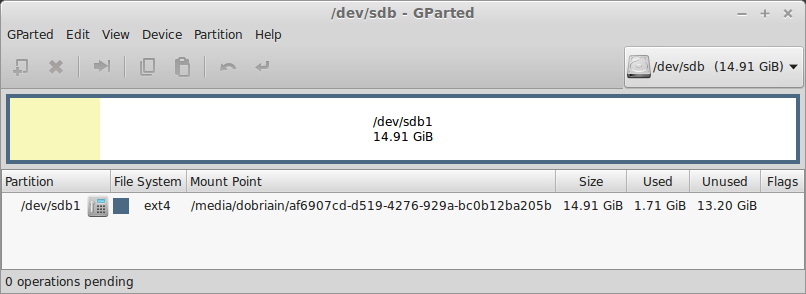
gparted is a graphical utility, for command-line equivalent use parted.
  $ sudo parted /dev/sdb
  GNU Parted 2.3
  Using /dev/sdb
  Welcome to GNU Parted! Type 'help' to view a list of commands.
  (parted)
The print command shows the existing partitions on the drive.
  (parted) print
  Model: SanDisk Ultra (scsi)
  Disk /dev/sdb: 16.0GB
  Sector size (logical/physical): 512B/512B
  Partition Table: gpt

  Number  Start   End     Size    File system  Name              Flags
   1      1049kB  16.0GB  16.0GB  ext4         Linux file-system

  (parted) rm 1
  Warning: Partition /dev/sdb1 is being used. Are you sure you want to continue?
  Yes/No? Yes
  Error: Partition(s) 1 on /dev/sdb have been written, but we have been unable to inform the kernel of the change, probably because it/they are in use.  As a result, the
  old partition(s) will remain in use.  You should reboot now before making further changes.
  Ignore/Cancel? Ignore
  (parted) quit
  Information: You may need to update /etc/fstab.
Umount the partition /dev/sdb1 and reload by removing the USB drive and plugging it back in. Now print the partition table for /dev/sdb and you will see the table is empty.
  $ sudo umount /dev/sdb1

  $ sudo parted /dev/sdb
  GNU Parted 2.3
  Using /dev/sdb
  Welcome to GNU Parted! Type 'help' to view a list of commands.
  (parted) print
  Model: SanDisk Ultra (scsi)
  Disk /dev/sdb: 16.0GB
  Sector size (logical/physical): 512B/512B
  Partition Table: gpt

  Number  Start  End  Size  File system  Name  Flags

  (parted)
Create two partitions of roughly equal size.
  (parted) mkpart primary 1 8192
  (parted) mkpart primary 8193 15000
  (parted) print
  Model: SanDisk Ultra (scsi)
  Disk /dev/sdb: 16.0GB
  Sector size (logical/physical): 512B/512B
  Partition Table: gpt

  Number  Start   End     Size    File system  Name     Flags
   1      1049kB  8193MB  8191MB  ext4         primary
   2      8193MB  15.0GB  6807MB               primary

  (parted) exit
Check the new partitions.
  $ cat /proc/partitions | grep sdb
     8       16   15633408 sdb
     8       17    7999488 sdb1
     8       18    6647808 sdb2
Make an ext4 file-system on /dev/sdb1.
  $ sudo mkfs.ext4 /dev/sdb1

  mke2fs 1.42.9 (4-Feb-2014)
  file-system label=
  OS type: Linux
  Block size=4096 (log=2)
  Fragment size=4096 (log=2)
  Stride=0 blocks, Stripe width=0 blocks
  499968 inodes, 1999872 blocks
  99993 blocks (5.00%) reserved for the super user
  First data block=0
  Maximum file-system blocks=2051014656
  62 block groups
  32768 blocks per group, 32768 fragments per group
  8064 inodes per group
  Superblock backups stored on blocks:
  	32768, 98304, 163840, 229376, 294912, 819200, 884736, 1605632

  Allocating group tables: done
  Writing inode tables: done
  Creating journal (32768 blocks): done
  Writing superblocks and file-system accounting information:
Make a FAT32 (vfat) file-system on /dev/sdb2.
  $ sudo mkfs.fat /dev/sdb2
  mkfs.fat 3.0.26 (2014-03-07)
Display new partitions.
$ sudo gparted /dev/sdb
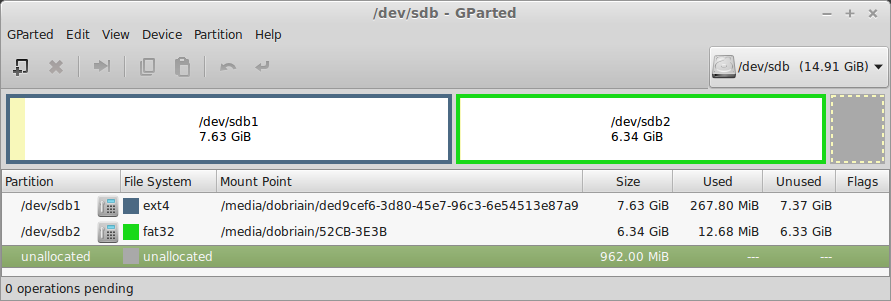
  $ sudo parted /dev/sdb
  GNU Parted 2.3
  Using /dev/sdb
  Welcome to GNU Parted! Type 'help' to view a list of commands.
  (parted) print
  Model: SanDisk Ultra (scsi)
  Disk /dev/sdb: 16.0GB
  Sector size (logical/physical): 512B/512B
  Partition Table: gpt

  Number  Start   End     Size    File system  Name     Flags
   1      1049kB  8193MB  8191MB  ext4         primary
   2      8193MB  15.0GB  6807MB  fat32        primary
An alternative to gparted is to use the gdisk. GPT fdisk (gdisk) is very similar to fdisk. It will automatically convert an old-style Master Boot Record (MBR) partition table or BSD disklabel stored without an MBR carrier partition to the newer Globally Unique Identifier (GUID) Partition Table (GPT) format, or will load a GUID partition table. Apart from the beginning where gdisk shows the type of partition table existing already the menu is familiar to that seen with fdisk apart from a couple relating to GPT.
  $ sudo gdisk /dev/sdb
  GPT fdisk (gdisk) version 0.8.8

  Partition table scan:
    MBR: protective
    BSD: not present
    APM: not present
    GPT: present

  Found valid GPT with protective MBR; using GPT.

  Command (? for help): ?
  b	back up GPT data to a file
  c	change a partition's name
  d	delete a partition
  i	show detailed information on a partition
  l	list known partition types
  n	add a new partition
  o	create a new empty GUID partition table (GPT)
  p	print the partition table
  q	quit without saving changes
  r	recovery and transformation options (experts only)
  s	sort partitions
  t	change a partition's type code
  v	verify disk
  w	write table to disk and exit
  x	extra functionality (experts only)
  ?	print this menu

  Command (? for help):
Starting with a standard partition of type ext4.
$ sudo mkfs.ext4 /dev/sdb1
Using Linux Unified Key Setup (LUKS) as the standard for disk encryption on Linux. luksFormat initialises a LUKS partition and sets the initial passphrase.
  $ sudo cryptsetup luksFormat /dev/sdb1

  WARNING!
  ========
  This will overwrite data on /dev/sdb1 irrevocably.

  Are you sure? (Type uppercase yes): YES
  Enter passphrase: secret
  Verify passphrase: secret
luksOpen opens the LUKS device and sets up a mapping to a given name (i.e. secret-disk) after successful verification of the supplied passphrase.
  $ sudo cryptsetup luksOpen /dev/sdb1 secret-disk
  Enter passphrase for /dev/sdb1: secret
Create a Crypt key file to store the key, this must have 400 permissions and be owned by root:root.
  $ sudo touch /root/keyfile

  $ sudo dd if=/dev/urandom of=/root/keyfile bs=1024 count=4
  4+0 records in
  4+0 records out
  4096 bytes (4.1 kB) copied, 0.00128413 s, 3.2 MB/s

  $ sudo cryptsetup luksAddKey /dev/sdb1 /root/keyfile
The file /etc/crypttab contains descriptive information about encrypted filesystems. crypttab is only read by programs like cryptdisks_start and cryptdisks_stop.
  $ sudo vi /etc/crypttab

  # <target name> <source device>         <key file>      <options>

  secret-disk     /dev/sdb1		/root/keyfile   luks
Note: The device /dev/sdb contains the encrypted data, which only the cryptsetup commands can access. /dev/mapper/secret-disk is the device on which operations to access the decrypted data is used, in the crypttab file the target name is the file only, not the path.
Format LUKS partition by writing zeros to /dev/mapper/secret-disk encrypted device. This will allocate block data with zeros and ensures that viewed from outside will show this as random data, it protect against disclosure of any usage patterns.
$ dd if=/dev/zero of=/dev/mapper/secret-disk
Make a filesystem on the new encrypted partition.
  $ sudo mkfs.ext4 /dev/mapper/secret-disk
  mke2fs 1.42.9 (4-Feb-2014)
  Filesystem label=
  OS type: Linux
  Block size=4096 (log=2)
  Fragment size=4096 (log=2)
  Stride=0 blocks, Stripe width=0 blocks
  488640 inodes, 1953408 blocks
  97670 blocks (5.00%) reserved for the super user
  First data block=0
  Maximum filesystem blocks=2000683008
  60 block groups
  32768 blocks per group, 32768 fragments per group
  8144 inodes per group
  Superblock backups stored on blocks:
  	32768, 98304, 163840, 229376, 294912, 819200, 884736, 1605632

  Allocating group tables: done
  Writing inode tables: done
  Creating journal (32768 blocks): done
  Writing superblocks and filesystem accounting information: done
Make a mount point.
$ sudo mkdir /mnt/secret
Add to the /etc/fstab file.
  $ sudo vi /etc/fstab

  # Secret Disk
  /dev/mapper/secret-disk    /mnt/secret    ext4    defaults    1    2
Mount the filesystems in the /etc/fstab.
$ sudo mount -a
Check the block ID for the /dev/sdb1 device.
  $ sudo blkid -p /dev/sdb1
  /dev/sdb1: UUID="3934a2b3-dae5-4bf1-a302-55253ee2feeb" VERSION="1" TYPE="crypto_LUKS" USAGE="crypto" PART_ENTRY_SCHEME="dos" PART_ENTRY_TYPE="0x83" PART_ENTRY_NUMBER="1" PART_ENTRY_OFFSET="2048" PART_ENTRY_SIZE="15631360" PART_ENTRY_DISK="8:16"
Confirm.
  $ df -h | grep secret
  /dev/mapper/secret-disk  7.3G   17M  6.9G   1% /mnt/secret
For this example the USB Stick created earlier will be mounted automatically at boot time. Clear the dmesg log.
$ sudo dmesg --clear
Plug in the USB Stick and then run dmesg.
  $ dmesg
  [ 7574.595004] usb 1-1.2: new high-speed USB device number 7 using ehci-pci
  [ 7574.688531] usb 1-1.2: New USB device found, idVendor=0781, idProduct=556c
  [ 7574.688536] usb 1-1.2: New USB device strings: Mfr=1, Product=2, SerialNumber=3
  [ 7574.688539] usb 1-1.2: Product: Ultra
  [ 7574.688542] usb 1-1.2: Manufacturer: SanDisk
  [ 7574.688544] usb 1-1.2: SerialNumber: 20051535821900D271F3
  [ 7574.688966] usb-storage 1-1.2:1.0: USB Mass Storage device detected
  [ 7574.689214] scsi7 : usb-storage 1-1.2:1.0
  [ 7575.687130] scsi 7:0:0:0: Direct-Access     SanDisk  Ultra            1.26 PQ: 0 ANSI: 5
  [ 7575.687636] sd 7:0:0:0: Attached scsi generic sg2 type 0
  [ 7575.689238] sd 7:0:0:0: [sdb] 31266816 512-byte logical blocks: (16.0 GB/14.9 GiB)
  [ 7575.690942] sd 7:0:0:0: [sdb] Write Protect is off
  [ 7575.690945] sd 7:0:0:0: [sdb] Mode Sense: 43 00 00 00
  [ 7575.692903] sd 7:0:0:0: [sdb] Write cache: disabled, read cache: enabled, doesn't support DPO or FUA
  [ 7575.717239]  sdb: sdb1 sdb2
  [ 7575.721558] sd 7:0:0:0: [sdb] Attached SCSI removable disk
  [ 7576.079960] FAT-fs (sdb2): Volume was not properly unmounted. Some data may be corrupt. Please run fsck.
  [ 7576.116953] EXT4-fs (sdb1): recovery complete
  [ 7576.125055] EXT4-fs (sdb1): mounted file-system with ordered data mode. Opts: (null)
This confirms the device is /dev/sdb. Now check the partition table with parted.
  $ sudo parted /dev/sdb
  GNU Parted 2.3
  Using /dev/sdb
  Welcome to GNU Parted! Type 'help' to view a list of commands.
  (parted) print
  Model: SanDisk Ultra (scsi)
  Disk /dev/sdb: 16.0GB
  Sector size (logical/physical): 512B/512B
  Partition Table: gpt

  Number  Start   End     Size    File system  Name     Flags
   1      1049kB  8193MB  8191MB  ext4         primary
   2      8193MB  15.0GB  6807MB  fat32        primary
Two partitions /dev/sdb1, the ext4 partition and /dev/sdb2 the FAT32 (vfat) partition exist. Create directories as points in the file system to mount the partitions to.
  $ sudo mkdir /mnt/ext4fs
  $ sudo mkdir /mnt/fat32fs
Add entries to the /etc/fstab file to map these mounts.
  $ sudo -s
  # cat << FSTAB >> /etc/fstab

  # Add lines to mount /dev/sdb1 and /dev/sdb2 on boot

  /dev/sdb1  /mnt/ext4fs   ext4    defaults,users    0   0
  /dev/sdb2  /mnt/fat32fs  vfat    defaults,users    0   0

  FSTAB
The users option permits users that are part of the disk group to mount and unmount the drives. The following command appends (-a) the group (-G) disk to the user lmenarea as a secondary group.
$ sudo usermod -a -G disk lmenabrea
Now mount the two partitions with the mount command, which will read the entries in the /etc/fstab directory.
  $ mount /dev/sdb1
  $ mount /dev/sdb2

  $ mount | grep sdb
  /dev/sdb1 on /mnt/ext4fs type ext4 (rw,noexec,nosuid,nodev)
  /dev/sdb2 on /mnt/fat32fs type vfat (rw,noexec,nosuid,nodev)
Create a file on the mounted partition, confirm the file was created. umount the partition and confirm file is gone. Remount again to see file is back.
  $ echo "This is a test file on the ext4 partition." > /mnt/ext4fs/ext4-file.txt

  $ ls /mnt/ext4fs/ | grep ext4-file.txt
  ext4-file.txt

  $ cat /mnt/ext4fs/ext4-file.txt
  This is a test file on the ext4 partition.

  $ umount /dev/sdb1
  $ ls /mnt/ext4fs/ | grep ext4-file.txt

  $ mount /dev/sdb1
  $ ls /mnt/ext4fs/ | grep ext4-file.txt
  ext4-file.txt
Reboot to confirm the partitions will mount automatically.
  $ mount | grep sdb
  /dev/sdb1 on /mnt/ext4fs type ext4 (rw,noexec,nosuid,nodev)
  /dev/sdb2 on /mnt/fat32fs type vfat (rw,noexec,nosuid,nodev)

  $ cat /mnt/ext4fs/ext4-file.txt
  This is a test file on the ext4 partition.
Mounts occurred automatically and the file created on the mounted partition is accessible.
Review partitions on /dev/sdb drive.
  $ sudo fdisk -l /dev/sdb

  Disk /dev/sdb: 15.6 GB, 15610576896 bytes
  224 heads, 54 sectors/track, 2520 cylinders, total 30489408 sectors
  Units = sectors of 1 * 512 = 512 bytes
  Sector size (logical/physical): 512 bytes / 512 bytes
  I/O size (minimum/optimal): 512 bytes / 512 bytes
  Disk identifier: 0x000899ce

     Device Boot      Start         End      Blocks   Id  System
  /dev/sdb1            2048    30489407    15243680   83  Linux
Traditional mount of the device.
  $ sudo mkdir /dev/sdb1

  $ sudo vi /etc/fstab

  /dev/sdb1    /mnt/sdb1    ext4    defaults    1    2

  $ mount /dev/sdb1

  $ mount | grep sdc1
  /dev/sdb1 on /mnt/sdb1 type ext4 (rw)
An alternative to this is to mount via the partition Universally Unique IDentifier (UUID) which is a practically unique 128-bit value that identifies devices, partitions etc.. First umount the partition and then obtain the UUID for /dev/sdb1.
  $ sudo umount /dev/sdb1

  $ sudo blkid /dev/sdb1
  /dev/sdb1: UUID="47e6efef-0119-4f08-a805-305052e0f48f" TYPE="ext4"
Now add an entry to the /etc/fstab file where the UUID replaced the
  $ sudo vi /etc/fstab

  # /dev/sdb1
  UUID="47e6efef-0119-4f08-a805-305052e0f48f"    /mnt/sdb1    ext4    defaults    1    2


  $ sudo mount /mnt/sdb1

  $ mount | grep sdb1
  /dev/sdb1 on /mnt/sdb1 type ext4 (rw)
Another alternative is to use e2label. The e2label command permits the viewing or changing of the label on an ext2/ext3/ext4 filesystem.
  $ sudo e2label /dev/sdb1 my_sdc1_part

  $ sudo e2label /dev/sdb1
  my_sdc1_part

  $ sudo vi /etc/fstab

  # /dev/sdb1
  LABEL="my_sdc1_part"    /mnt/sdb1    ext4    defaults    1    2


  $ mount | grep /mnt/sdb1
  /dev/sdb1 on /mnt/sdb1 type ext4 (rw)
NFS is a Client/Server solution that offers the ability to share the resources of a server with many clients. It is also possible to have clients without hard-drives and they mount a virtual hard-drive on a remote NFS Server. In this way all files are stored on the NFS Server.
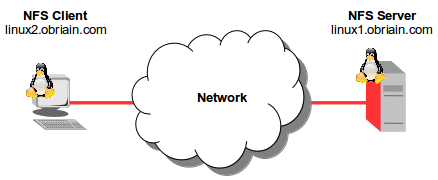
Create /library on the Server
linux1:~$ mkdir library linux1:~$ sudo ln -s /home/lmenabrea/library /library linux1:~$ echo "This is a test file" > /library/testfile
Install NFS on the Server
Install the following packages on the NFS Server.
linux1:~$ sudo apt-get install nfs-kernel-server nfs-common rpcbind
Add domain to idmapd.conf
Under the line #Domain = localdomain add the domain name.
linux1:~$ vi /etc/idmapd.conf ... Domain = obriain.com ...
Confirm connectivity with the Client
$ ping -c1 linux2.obriain.com PING linux2.obriain.com (78.143.141.205) 56(84) bytes of data. 64 bytes from 78.143.141.205: icmp_req=1 ttl=61 time=5.51 ms --- linux2.obriain.com ping statistics --- 1 packets transmitted, 1 received, 0% packet loss, time 0ms rtt min/avg/max/mdev = 5.519/5.519/5.519/0.000 ms
Configure the NFS Server
NFS exports are configured in the file /etc/exports. Each line begins with the absolute path of the directory to be exported, followed by a space separated list of allowed clients and their associated options. In this case the options are:
| Option | Description |
|---|---|
| rw | Allow both read and write requests on this NFS volume. |
| sync | Reply to requests only after the changes have been committed to stable storage. |
| no_subtree_check | This disables subtree checking, which has mild security implications, but can improve reliability. |
linux1:~$ sudo -s linux1:~# echo -e "\n# /library access" >> /etc/exports linux1:~# echo "/library linux.obriain.com(rw,sync,fsid=0,no_subtree_check)" >> /etc/exports linux1:~# service nfs-kernel-server start [ ok ] Exporting directories for NFS kernel daemon.... [ ok ] Starting NFS kernel daemon: nfsd mountd. linux1:~# exportfs -a linux1:~# exit
Confirm connectivity with the NFS Server
linux2:~$ ping -c1 linux1.obriain.com PING linux1.obriain.com (109.106.96.158) 56(84) bytes of data. 64 bytes from 109.106.96.158: icmp_req=1 ttl=62 time=8.12 ms --- linux1.obriain.com ping statistics --- 1 packets transmitted, 1 received, 0% packet loss, time 0ms rtt min/avg/max/mdev = 8.122/8.122/8.122/0.000 ms
Install NFS on the Client
Install the following packages for a Debian GNU/Linux NFS client.
linux2:~$ sudo apt-get install nfs-common rpcbind
Add domain to idmapd.conf
As on the Server add the shared Domain name.
linux1:~$ vi /etc/idmapd.conf ... Domain = obriain.com ... linux1:~$ sudo /etc/init.d/nfs-common restart
Setup mount in /etc/fstab file
Add an entry in the /etc/fstab file that mounts the remote NFS Server export to a local directory /mnt/library. Establish a number of options to allow user Read/Write (rw) access and the NO Set owner User ID (nosuid) option to block the operation of suid, and sgid bits being transferred from files on the NFS Server. Initially using the verbose -v option switch with the mount command highlights any potential problems that may exist.
linux2:~$ sudo -s linux2:~# mkdir /mnt/library linux2:~# echo -e "\n# /Mount to linux1.obriain.com:/library" >> /etc/fstab linux2:~# echo -e "linux1.obriain.com:/library\t/mnt/library\tnfs\tuser,rw,nosuid\t0\t0" >> /etc/fstab linux2:~# mount -v linux1.obriain.com:/library mount.nfs: timeout set for Tue May 27 20:06:59 2014 mount.nfs: trying text-based options 'vers=4,addr=109.106.96.158,clientaddr=78.143.141.205' mount.nfs: mount(2): No such file or directory mount.nfs: trying text-based options 'addr=109.106.96.158' mount.nfs: prog 100003, trying vers=3, prot=6 mount.nfs: trying 109.106.96.158 prog 100003 vers 3 prot TCP port 2049 mount.nfs: prog 100005, trying vers=3, prot=17 mount.nfs: trying 109.106.96.158 prog 100005 vers 3 prot UDP port 37778
Users and Groups
It is essential that users have the same User ID (UID) and Group ID (GID) at each side as NFS uses the ID numbers to implement permissions. In the example below note that the permissions in both cases are UID=1001 and GID=1001.
NFS Server
linux1:~$ id uid=1001(lmenabrea) gid=1001(lmenabrea) groups=1001(lmenabrea)
NFS Client
linux2:~$ id uid=1001(lmenabrea) gid=1001(lmenabrea) groups=1001(lmenabrea)
Confirm a successful mount.
linux2:~$ df -h | grep library linux1.obriain.com:/library 29G 3.3G 24G 13% /mnt/library
Create a file on the NFS Share from the Client, use the user lmenabrea.
linux2:~$ echo "This is a client side write test" > /mnt/library/clienttestfile linux2:~$ cat /mnt/library/clienttestfile This is a client side write test
Check the file in the /library directory on the Server and create a server side file for test with the user lmenabrea.
linux1:~$ cat /library/clienttestfile This is a client side write test linux1:~$ echo "This is a Server side write test" > /library/servertestfile linux1:~$ cat /library/servertestfile This is a Server side write test
Check the servertestfile on the NFS Client from the lmenabrea user.
linux2:~$ cat /mnt/library/servertestfile This is a Server side write test
The Short Message Block (SMB)/Common Internet File System (CIFS) networking protocol protocol along with a specific implementation of Lightweight Directory Access Protocol (LDAP) called Active Directory (AD) is used by Microsoft Windows to provide file and print services for various Windows clients and supports Microsoft Windows Server domain Primary Domain Controllers (PDC) and domain members. Samba is a FOSS implementation of this Microsoft infrastructure and allows for GNU/Linux Servers and Workstations to participate as part of an Active Directory domain or simply using SMB as part of the Microsoft Windows Network. Effectively the Samba Server acts as a Windows LAN Manager Server while the Samba Workstation acts as a Windows LAN Manager Workstation.

Install the Samba Server software.
linux1:~$ sudo apt-get install samba
Samba Password
Samba shares a directory or directories that are owned by a user on the Samba Server. The Samba password however is different to that used by the server for the user from /etc/passwd and /etc/shadow. The Samba password is stored in /etc/samba/smbpasswd. In this case we will share a directory called smbshare in Ada Lovelace's home directory.
linux1:~$ sudo mkdir /home/alovelace/smbshare linux1:~$ sudo -s linux1:~# echo "This is the SMB Share file" > /home/alovelace/smbshare/SMBtest.txt linux1:~# chown -R alovelace:alovelace /home/alovelace/smbshare/ linux1:~# exit linux1:~$ ls /home/alovelace/smbshare total 12 drwxr-xr-x 2 alovelace alovelace 4096 Feb 16 06:38 . drwxr-xr-x 3 alovelace alovelace 4096 Feb 16 06:29 .. -rw-r--r-- 1 alovelace alovelace 27 Feb 16 06:38 SMBtest.txt
Set the SMB Password for Ada Lovelace to allow access to the share.
linux1:~$ sudo smbpasswd -a alovelace New SMB password: smblace Retype new SMB password: smblace Added user alovelace.
Create the Samba Share
Add the share to the file /etc/samba/smb.conf.
linux1:~$ sudo -s linux1:~# cat <<EOM >> /etc/samba/smb.conf > > # SMB Share for /home/alovelace/smbshare > > [smbshare] > comment = Ada Lovelace SMB Share > path = /home/alovelace/smbshare > available = yes > valid users = alovelace > read only = no > browseable = yes > public = yes > writable = yes > > EOM linux1:~# exit linux1:~$
Re-start the Samba Daemon
Restart the SMB Daemon smbd to re-read the dmb.conf file.
linux1:~$ sudo service smbd restart smbd stop/waiting smbd start/running, process 20070
Test the smb.conf file for errors.
$ testparm Load smb config files from /etc/samba/smb.conf rlimit_max: increasing rlimit_max (1024) to minimum Windows limit (16384) Processing section "[printers]" Processing section "[print$]" Processing section "[smbshare]" Loaded services file OK. Server role: ROLE_STANDALONE Press enter to see a dump of your service definitions
Install the Samba Client software.
linux2:~$ sudo apt-get install samba-client samba-common cifs-utils linux2:~$ smbclient -L linux1.obriain.com Enter cbabbage's password: invpass Domain=[WORKGROUP] OS=[Unix] Server=[Samba 4.1.6-Ubuntu] Sharename Type Comment --------- ---- ------- print$ Disk Printer Drivers smbshare Disk Ada Lovelace SMB Share IPC$ IPC IPC Service (ubuntu server (Samba, Ubuntu)) Domain=[WORKGROUP] OS=[Unix] Server=[Samba 4.1.6-Ubuntu] Server Comment --------- ------- UBUNTU ubuntu server (Samba, Ubuntu) Workgroup Master --------- ------- WORKGROUP UBUNTU
Create secure password file
It is unsafe to store SMB user-names and passwords in the /etc/fstab file so create a secure location for them which can be referred to in fstab, i.e. I used /etc/samba/smbusrpwd, but it can be anywhere.
linux2:~$ sudo -s linux2:~# cat <<EOM > /etc/samba/smbusrpwd > username=alovelace > password=smblace > EOM linux2:~# chmod 600 /etc/samba/smbusrpwd linux2:~# exit linux2:~$
Create a share point
Create a share point on the client onto which the SMB share can be mounted.
linux2:~$ sudo mkdir /mnt/smbshare
Add a mount in /etc/fstab
Create an fstab mount.
linux2:~$ sudo -s linux2:~# cat <<EOM >> /etc/fstab > # > # Entry for SMB Share > //192.168.22.89/smbshare /mnt/smbshare cifs credentials=/etc/samba/smbusrpwd,defaults 0 0 > EOM linux2:~# exit linux2:~$
Mount the share and confirm
Mount the share and confirm by reviewing the file created on the server locally on the client workstation.
linux2:~$ sudo mount /mnt/smbshare linux2:~$ cd /mnt/smbshare linux2:~$ ls SMBtest.txt linux2:~$ cat SMBtest.txt This is the SMB Share file
The use of tools like fdisk, gdisk, parted, mkfs, fsck etc.. for the creation of partitions are already well covered throughout this document.
The fsck utility is used to check a file-system health and should only be run against an unmounted file-system to check for possible issues.
The exit code returned by fsck is the sum of the following conditions:
| Exit code | Meaning |
|---|---|
| 0 | No errors |
| 1 | file-system errors corrected |
| 2 | System should be rebooted |
| 4 | file-system errors left uncorrected |
| 8 | Operational error |
| 16 | Usage or syntax error |
| 32 | Fsck canceled by user request |
| 128 | Shared-library error |
Check the EXT4 file-system on /dev/sdb1 partition. Note the echo $? gives the exit status for the previous command.
$ fsck.ext4 /dev/sdb1 e2fsck 1.42.9 (4-Feb-2014) /dev/sdb1: clean, 13/499968 files, 68558/1999872 blocks $ echo $? 0
Check the FAT32 file-system on /dev/sdb2 partition. echo $? returns an exit status of 0.
$ fsck.vfat /dev/sdb2 fsck.fat 3.0.26 (2014-03-07) /dev/sdb2: 1 files, 1/1658708 clusters $ echo $? 0
If a file-system has not been cleanly unmounted, the system detects a dirty bit on the file-system during the next bootup and starts a check. fsck will detect any errors on the file-system and attempt to fix. You should not interrupt this repair process.
If an empty forcefsck file is created in the root of the root file-system. file-systems that have > 0 specified in the sixth column of the /etc/fstab will be checked. 0 means do not check. In the case of the extract of /etc/fstab below, /dev/sdb1 would be checked, however /dev/sdb2 would not.
$ sudo touch /forcefsck (Extract from /dev/fstab) # <file system> <mount point> <type> <options> <dump> <pass> /dev/sdb1 /mnt/ext4fs ext4 defaults 0 1 /dev/sdb2 /mnt/fat32fs vfat defaults 0 0
Substitute User (su) is command is used to change a login session's owner. In this example the login session of lmenabrea has the ownership of the session change to Ada Lovelace alovelace.
$ whoami lmenabrea $ su alovelace Password: maths :/home> whoami alovelace :/home> echo $PATH /usr/local/sbin:/usr/local/bin:/usr/sbin:/usr/bin:/sbin:/bin:/usr/games:/usr/local/games
In this case Ada Lovelace will maintain the current directory and the environmental variables of the original user rather than switching to her own account directory and environment variables. To switch and change the current directory and environmental variables a - is required. To demonstrate, note the different $PATH values.
$ whoami lmenabrea
Change to Ada Lovelace account. Trying with and without the '-' or a '-l' switch. Using either of these switch options provide an environment similar to what the user would expect had the user logged in directly. This can be seen by noting the $PATH assigned after login.
$ su alovelace
Password: maths
:~> whoami
alovelace
:~> echo $PATH
/usr/local/sbin:/usr/local/bin:/usr/sbin:/usr/bin:/sbin:/bin:/usr/games:/usr/local/games
:~> echo $HOME
/home/alovelace
$ su - alovelace
Password: maths
:~% whoami
alovelace
:~% echo $PATH
/usr/local/bin:/usr/bin:/bin:/usr/local/games:/usr/games
:~% echo $HOME
/home/alovelace
To change to the root user with Super User privileges. Again note the difference when a '-' or '-l' is used.
$ su Password: root-pass ~ # whoami root $ echo $PATH /usr/local/sbin:/usr/local/bin:/usr/sbin:/usr/bin:/sbin:/bin:/usr/games:/usr/local/games # echo $HOME /root $ su - Password: root-pass ~ # whoami root ~ # echo $PATH /usr/local/sbin:/usr/local/bin:/usr/sbin:/usr/bin:/sbin:/bin ~ # echo $HOME /root
SuperUser Do (sudo) is a program used to eXecute a command as another user. It allows users to run programs with the security privileges of another user (typically the superuser, or root).
Looking at a new iteration of the hello.sh script used earlier. Note that it is owned by alovelace and group rights are with the babbage group. Therefore any attempt by lmenabrea to run the script fails.
$ cat hello.sh
#!/bin/bash
echo "Hello World"
while :
do
echo "Press [CTRL+C] to stop.."
sleep 1
done
$ ls -la | grep hello.sh
-rwxr-xr-- 1 alovelace babbage 91 Oct 26 00:54 hello.sh
$ ./hello.sh
-bash: ./hello.sh: Permission denied
Now run with sudo, you can see that the process is actually ran by the user root.
$ sudo ./hello.sh Hello World Press [CTRL+C] to stop.. Press [CTRL+C] to stop.. Press [CTRL+C] to stop.. root 6248 6247 0 01:00 pts/7 00:00:00 /bin/bash ./hello.sh
Now try running it as alovelace or the group babbage using sudo. In the latter case the script is ran by lmenabrea and is allowed because the sudo was supplied the group babbage and lmenabrea is in the sudo group.
$ sudo -u alovelace ./hello.sh Hello World Press [CTRL+C] to stop.. Press [CTRL+C] to stop.. Press [CTRL+C] to stop.. alovela+ 6130 6129 0 00:58 pts/7 00:00:00 /bin/bash ./hello.sh $ sudo -g babbage ./hello.sh Hello World Press [CTRL+C] to stop.. Press [CTRL+C] to stop.. Press [CTRL+C] to stop.. lmenabrea 6402 6401 0 01:02 pts/7 00:00:00 /bin/bash ./hello.sh
The sudo policy is configured in the /etc/sudoers file. This is responsible for defining which users have privileges to use sudo.
Lines within the /etc/sudoers file or files in the /etc/sudoers.d/ directory take the following form.
The file starts with the setting of Defaults. Reset environment variables, specify the path applicable to users who gain sudo level access and define the editor to be used when visudo command is executed. The file should only be edited using visudo as this tool checks the files integrity before closing.
Defaults env_reset Defaults secure_path="/usr/local/sbin:/usr/local/bin:/usr/sbin:/usr/bin:/sbin:/bin" Defaults editor=/usr/bin/vi
Next it is possible to create aliases. Alias names must always start with a capital letter. For example:
User_Alias replace the portion of the rule that specifies the [USER], see below.
User_Alias SUPERUSERS = cbabbage, aturing User_Alias POWERUSERS = alovelace, lmenabrea
Host_Alias replace the portion of the rule that specifies the [HOSTS], see below.
Host_Alias WEBHOSTS = Pluto, Jupiter, Saturn, Mars
Runas_Alias replace the portion of the rule that specifies the [USERS]:[GROUPS], see below.
Runas_Alias WEBUSERS = www-data, apache
Cmnd_Alias replace the portion of the rule that specifies the [COMMANDS], see below.
Cmnd_Alias POWER = /sbin/shutdown, /sbin/halt, /sbin/reboot, /sbin/restart
And finally the actual user or group entries. They follow the format:
[USER] [HOSTS]=([USERS]:[GROUPS]) [COMMANDS]
So the following means that Ada Lovelace can can on all hosts as all users and as all groups run all commands. Or in other words Ada Lovelace has been given the same rights as the root user.
alovelace ALL= (ALL:ALL) ALL
or in this case users defined by the User_Alias SUPERUSERS have sudo rights.
SUPERUSERS ALL = (ALL:ALL) ALL
or power users can execute power commands on any host.
POWERUSERS ALL = (ALL:ALL) POWER
A % symbol before the first field indicates all the users of a group. So to allow members of the sudo group to execute any command.
%sudo ALL=(ALL:ALL) ALL
In this case all members of the admin group may gain root privileges without a password.
%admin ALL=(ALL) NOPASSWD:ALL
Finally a line that is required at the end of the /etc/sudoers file to include any files in the /etc/sudoers.d/ directory.
#includedir /etc/sudoers.d
Changes to the /etc/sudoers file or the addition or editing of files in the /etc/sudoers.d/ directory requires the sudo service to be restarted.
$ sudo service sudo restart
The easiest way to give a user sudo rights is to add them to the sudo group. In this example Ada Lovelace is added to the sudo group and given sudo privileges. (It is possible to directly edit the /etc/group file either).
$ cat /etc/group | grep ^sudo sudo:x:27:lmenabrea $ sudo usermod -a -G sudo alovelace $ cat /etc/group | grep ^sudo sudo:x:27:lmenabrea,alovelace
It is possible to get full root privileges using sudo with the -s switch. This is identical to the su command except the root password is not necessary.
$ sudo -s # whoami root
#!/bin/bash echo "Hello World"
#!/bin/bash # Interactive reading of variables echo "ENTER YOUR NAME" read sname # Display of variable values echo $sname
| Character | Description |
|---|---|
| # | Used to add a comment, except when used as \#, or as #! when starting a script |
| \ | Used at the end of a line to indicate continuation on to the next line |
| ; | Used to interpret what follows as a new command |
| $ | Indicates what follows is a variable |
display () {
echo "This is a sample function"
}
By enclosing the inner command with backticks (`) or by enclosing the inner command in $( ).
#!/bin/bash
ls /lib/modules/`uname -r`
echo; printf '*%.0s' {1..20}; echo
ls /lib/modules/$(uname -r)
echo
$ ./cmd_sub.sh build kernel modules.alias.bin modules.builtin.bin modules.dep.bin modules.order modules.symbols updates initrd modules.alias modules.builtin modules.dep modules.devname modules.softdep modules.symbols.bin ******************** build kernel modules.alias.bin modules.builtin.bin modules.dep.bin modules.order modules.symbols updates initrd modules.alias modules.builtin modules.dep modules.devname modules.softdep modules.symbols.bin
#!/bin/bash DIDDLY=pink echo "My teddybear is $DIDDLY" $ ./pink.sh My teddybear is pink
Variables created within a script are available only to the subsequent steps of that script. Any child processes (sub-shells) do not have automatic access to the values of these variables.
export VAR=value
or
VAR=value ; export VAR
| Parameter | Meaning |
|---|---|
| $0 | Script name |
| $1 | First parameter |
| $2, $3, etc. | Second, third parameter, etc. |
| $* | All parameters |
| $# | Number of arguments |
$ wc -l syslog.pdf 1721 syslog.pdf $ wc -l < syslog.pdf 1721
if TEST-COMMANDS; then CONSEQUENT-COMMANDS; fi
A more general definition is:
if condition
then
statements
else
statements
fi
i.e.
$ cat if.sh
#!/bin/bash
echo -n "ENTER A NUMBER: "
read number
if [ $number -eq 10 ]
then
echo 'It is 10'
else
echo 'It is not 10'
fi
$ ./if.sh
ENTER A NUMBER: 10
It is 10
$ ./if.sh
ENTER A NUMBER: 11
It is not 10
if condition
then
statements
else
statements
fi
i.e.
$ cat elif.sh
#!/bin/bash
echo -n "ENTER A NUMBER: "
read number
if [ $number -eq 10 ]
then
echo 'It is 10'
elif [ $number -eq 11 ]
then
echo 'It is 11'
else
echo 'It is not 10 or 11'
fi
$ ./elif.sh
ENTER A NUMBER: 10
It is 10
$ ./elif.sh
ENTER A NUMBER: 11
It is 11
$ ./elif.sh
ENTER A NUMBER: 12
It is not 10 or 11
if [ -f filename ]
| Condition | Meaning |
|---|---|
| -e file | Check if the file exists. |
| -d file | Check if the file is a directory. |
| -f file | Check if the file is a regular file. |
| -s file | Check if the file is of non-zero size. |
| -g file | Check if the file has sgid set. |
| -u file | Check if the file has suid set. |
| -r file | Check if the file is readable. |
| -w file | Check if the file is writeable. |
| -x file | Check if the file is executable. |
| Operator | Meaning |
|---|---|
| -eq | Equal to. |
| -ne | Not equal to. |
| -gt | Greater than. |
| -lt | Less than. |
| -ge | Greater than or equal to. |
| -le | Less than or equal to. |
| Operator | Meaning |
|---|---|
| == | Is equal to. |
| != | Is not equal to. |
| -z | String is null. |
| -n | String is not null. |
if [ string1 == string2 ] ; then
ACTION
fi
expr 8 + 8 echo $(expr 8 + 8)
Using the $((...)) syntax: This is the built-in shell format. The syntax is as follows:
echo $((x+1))
Using the built-in shell command let. The syntax is as follows:
let x=( 1 + 2 ); echo $x
myLen1=${#mystring1}
Saves the length of mystring1 in the variable myLen1.
${string:0:1}
Here 0 is the offset in the string (i.e., which character to begin from) where the extraction needs to start and 1 is the number of characters to be extracted.
${string#*.}
To extract all characters in a string after a dot (.).
| Operator | Operation | Meaning |
|---|---|---|
| && | AND | The action will be performed only if both the conditions evaluate to true. |
| || | OR | The action will be performed if any one of the conditions evaluate to true. |
| ! | NOT | The action will be performed only if the condition evaluates to false. |
case expression in
pattern1) eXecute commands;;
pattern2) eXecute commands;;
pattern3) eXecute commands;;
pattern4) eXecute commands;;
* ) eXecute some default commands or nothing ;;
esac
Example:
#!/bin/bash
echo "ENTER a number between 1 & 5"
read numb
case $numb in
1 ) echo "you selected 1";;
2 ) echo "you selected 2";;
3 ) echo "you selected 3";;
4 ) echo "you selected 4";;
5 ) echo "you selected 5";;
* ) echo "you cheated !! ";;
esac
#!/bin/bash
num=0
end=15
for i in 1 2 3 4 5 6 7 8 9 10 11 12 13 14 15
do
num=$(($num+$i))
done
echo "The sum of $end numbers is $num "
num=0
for i in {1..15}
do
num=$(($num+$i))
done
echo "The sum of $end numbers is $num "
num=0
for (( i=$num; i<=$end; i++ ))
do
num=$(($num+$i))
done
echo "The sum of $end numbers is $num "
Another example, this time reading lines from a file one by one. Note the syntax $'\n'. Normally bash interprets '\n' as a backslash followed by the letter n. $'\n' is interpreted as a carriage return.
$ cat engineers Luigi Menabrea Ada Lovelace Charles Babbage $ cat for_engineers.sh #!/bin/bash IFS=$'\n' for i in $(cat engineers) do echo "$i." done unset IFS $ ./for_engineers.sh Luigi Menabrea. Ada Lovelace. Charles Babbage.
#!/bin/bash
num=0
end=15
while [ $num -lt $end ]
do
echo "$num is less than $end"
((num++))
done
echo "$num = $end"
#!/bin/bash
num=0
end=15
until [ $num -eq $end ]
do
echo "$num is less than $end"
((num++))
done
echo "$num = $end"
#!/bin/bash -xv
| set -x | activate debugging from here. |
| cmd | Command or command block to be monitored. |
| set +x | stop debugging from here. |
| File stream | Description | File Descriptor |
|---|---|---|
| stdin | Standard Input, by default the keyboard/terminal for programs run from the command line | 0 |
| stdout | Standard output, by default the screen for programs run from the command line | 1 |
| stderr | Standard error, where output error messages are shown or saved | 2 |
To redirect stdout to a file use either 1> or simply >.
$ ls -la 1> lsla.txt $ ls -la > lsla.txt $ cat lsla.txt total 16 drwxr-xr-x 2 dobriain dobriain 4096 Dec 31 16:51 . drwxr-xr-x 4 dobriain dobriain 4096 Dec 31 13:03 .. -rw-r--r-- 1 dobriain dobriain 0 Dec 31 16:51 lsla.txt -rw-r--r-- 1 dobriain dobriain 145 Dec 29 21:45 printer.txt -rw-r--r-- 1 dobriain dobriain 166 Dec 29 21:45 printer.txt.bak
To redirect stderr to a file use 2>.
$ ls % ls: cannot access %: No such file or directory $ ls % 2> lserr.txt $ cat lserr.txt ls: cannot access %: No such file or directory
A single chevron > overwrites the file if it already existed. Using a double chevron appends to the file.
$ ls -la ^ 2>> lserr.txt $ cat lserr.txt ls: cannot access %: No such file or directory ls: cannot access ^: No such file or directory
A special syntax 2>&1. Looking at a command that generates both stdout and stderr. The 2>&1 syntax redirects the output of stderr into the stdout stream.
$ ls -ld /tmp /tnn ls: cannot access /tnn: No such file or directory drwxrwxrwt 14 root root 4096 Dec 31 17:05 /tmp $ ls -ld /tmp /tnn 1> lsld.std ls: cannot access /tnn: No such file or directory $ cat lsld.std drwxrwxrwt 14 root root 4096 Dec 31 17:05 /tmp $ ls -ld /tmp /tnn 2> lsld.err drwxrwxrwt 14 root root 4096 Dec 31 17:05 /tmp $ cat lsld.err ls: cannot access /tnn: No such file or directory $ ls -ld /tmp /tnn > lsld.both 2>&1 $ cat lsld.both ls: cannot access /tnn: No such file or directory drwxrwxrwt 14 root root 4096 Dec 31 17:10 /tmp
tee - read from standard input and write to stdout and to a file.
$ cat lsld.* | tee lsld.all ls: cannot access /tnn: No such file or directory drwxrwxrwt 14 root root 4096 Dec 31 17:10 /tmp ls: cannot access /tnn: No such file or directory drwxrwxrwt 14 root root 4096 Dec 31 17:05 /tmp $ cat lsld.all ls: cannot access /tnn: No such file or directory drwxrwxrwt 14 root root 4096 Dec 31 17:10 /tmp ls: cannot access /tnn: No such file or directory drwxrwxrwt 14 root root 4096 Dec 31 17:05 /tmp
| Command | Usage |
|---|---|
| TEMP=$(mktemp /tmp/tempfile.XXXXXXXX) | To create a temporary file |
| TEMPDIR=$(mktemp -d /tmp/tempdir.XXXXXXXX) | To create a temporary directory |
$ mktemp passwdXXXX passwdU9t3 $ mktemp -d passwdXXXX passwdSjnH $ ls -l |grep pass drwx------ 2 lmenabrea lmenabrea 4096 Oct 1 17:49 passwdSjnH -rw------- 1 lmenabrea lmenabrea 0 Oct 1 17:49 passwdU9t3
/dev/null the bit bucket or black hole.
$ echo $RANDOM 3679 $ echo $RANDOM 394 $ echo $RANDOM 16847 $ echo $RANDOM 7609
random, urandom kernel random number source devices.
$ head -c 1M < /dev/urandom > ~/Desktop/random.data.1M
$ ls -l ~/Desktop/random.data.1M
-rw-r--r-- 1 lmenabrea lmenabrea 1048576 Oct 1 19:01 /home/lmenabrea/Desktop/random.data.1M
$ cat ~/Desktop/random.data.1M
�RI;�Hl�X0��
�V�Rs.�
���K��Ї�ٷ�e���s4 ʵ2"�M����EFeb����E����+)��&�
}�D��*���I
G������4F��Qw
���#�ɍE��fN�6�y���SO\�`;;ݦ}
<�X����"I�ԣ���FJo�_m�����V�u(v�CG�H 9��X��Kҳ=rdD��ڋ�>&`tĺ�4�\��.�\:7k�ԁ?x.�R�O}���+z��X8������ c�4�NP���x����55�覵j�E��|}M��4O�r�v�Fk�-��0��
_9��v�`�4=KA�i�����{1�S�{
�E웓WV=���Z��_�g���a'$�U�� �B/� ���n����G��Ô�Ku-�"|�ޔ#�@����4
���
A here document is a special-purpose code block. It uses a form of I/O redirection to feed a command list to an interactive program or a command.
$ cat <<EOM ------------------------------------- This is line 1 of the message. This is line 2 of the message. This is line 3 of the message. This is line 4 of the message. This is the last line of the message. ------------------------------------- EOM
Using <<- instead of << suppresses leading tabs.
$ cat <<-EOM ------------------------------------- This is line 1 of the message. This is line 2 of the message. This is line 3 of the message. This is line 4 of the message. This is the last line of the message. ------------------------------------- EOM
Assign a here document to a variable.
#!/bin/bash here_file=$(cat <<EOM ------------------------------------- This is line 1 of the message. This is line 2 of the message. This is line 3 of the message. This is line 4 of the message. This is the last line of the message. ------------------------------------- EOM ) echo "Here is the document"; echo echo "$here_file"
Using a here document as a comment block. Handy for troubleshooting.
: <<COMMENT This will not be processed by the bash interpretor. COMMENT
Software is installed on Debian based distributions using the APT utility. apt-cache is the tool used to search for packages in the repositories while apt-get is the APT tool for handling packages
apt-get [options] [command] [package ...]
| Command | Meaning |
|---|---|
| update | used to resynchronise the package overview files from their sources. |
| upgrade | used to install the newest versions of all packages currently installed on the system from the sources enumerated in /etc/apt/sources.list. |
| dist-upgrade | dist-upgrade, in addition to performing the function of upgrade, also intelligently handles changing dependencies with new versions of packages. |
| install | install is followed by one or more packages desired for installation. |
| remove | to install except that packages are removed instead of installed. |
| check | Diagnostic tool; it updates the package cache and checks for broken packages. |
| clean | clean clears out the local repository of retrieved package files. |
Find a package that acts as a sticky note for the desktop and install.
$ apt-cache search <package> $ apt-cache search sticky knotes - sticky notes application labrea - a "sticky" honeypot and IDS rhinote - virtual sticky-notes for your desktop xpad - sticky note application for X $ sudo apt-get install xpad $ xpad

tmux is a terminal multiplexer: it enables a number of terminals to be created, accessed, and controlled from a single screen. tmux may be detached from a screen and continue running in the background, then later reattached.
| Shell command | Meaning |
|---|---|
| $ tmux new -s <session_name> | Creates a new tmux session named <session_name> |
| $ tmux attach -t <session_name> | Attaches to an existing tmux session named <session_name> |
| $ tmux switch -t <session_name> | Switches to an existing session named <session_name> |
| $ tmux list-sessions | Lists existing tmux sessions |
| $ tmux detach (prefix + d) | Detach the currently attached session |
| Keystroke | Meaning |
|---|---|
| <Ctrl-b>% | Split a window vertically |
| <Ctrl-b>" | Split the window horizontally |
| <Ctrl-b>x | Kill the current pane |
| <Ctrl-b> Up, Down, Right, Left | Move the cursor from one pane to the other |
| <Ctrl-b>; | If you want to go to the previously active pane |
| <Ctrl-b><Ctrl-o> | Rotate the panes |
| <Ctrl-b>x | Close the current pane |
| <Ctrl-b>[ | Scroll within a pane (use q to exit this mode) |
| <Ctrl-b>{ | Swap the current pane with the previous pane |
| <Ctrl-b>} | Swap the current pane with the next pane |
tmux is handy for the examination to create multiple shell panes.
bc is a command-line calculator.
$ bc bc 1.06.95 Copyright 1991-1994, 1997, 1998, 2000, 2004, 2006 Free Software Foundation, Inc. This is free software with ABSOLUTELY NO WARRANTY. For details type `warranty'. 34*4 136 23+45 68 10/5 2 66-6 60 quit